Tinnitus for Evolv AI
2400 and Livio Edge
AI Products
Tinnitus generates a stimulus that can either be a flat white noise response, shaped based on the patient’s audiogram, or personalized with In-situ testing. 'Stimulus Personalization' shapes the tinnitus stimulus based on the (Measures the stimulus detection threshold.) and (Measures the lowest stimulus level that masks the tinnitus.) measurements. A tool guides you through the entire process which includes measuring both the MDL and MML in three frequency groupings (low, mid, and high) and applying the customized stimulus shape.
Tinnitus also allows you to make discrete, frequency-specific Band adjustments per memory. Band changes adjust the specific output settings. The level of the Tinnitus Stimulus can be controlled via User Controls. Adjustments can be made to each individual band, to groups of bands labeled low frequencies, mid frequencies or high frequencies, or to all bands simultaneously. The rate of modulation, which changes the frequency and amplitude (level) of the signal over time, can be selected. This feature allows you to select how quickly these changes take place.
The Tinnitus screen displays the current numerical output values per ear side for specific frequency ranges or individual bands depending on the state of each frequency range control (expanded or collapsed). Adjustments to the selected cells can be made via up and down arrows and the settings can be copied from one memory to another in select products.
Configuring tinnitus based on the patient's unique experiences can be achieved by understanding his/her difficulties with tinnitus. The Tinnitus Handicap Inventory assessment assists in identifying the patient's frustrations and severity of tinnitus.
Enabling/Disabling Automatically, Target Match Tinnitus, User Controls, and Acoustic OptionsEnabling/Disabling Automatically, Target Match Tinnitus, User Controls, and Acoustic Options
If Best Fit All Memories is applied during any fitting, the Stimulus
is automatically set to Off.
To configure any memory with Tinnitus Stimulus only functionality,
select the Stimulus and uncheck
Microphone On. The Tinnitus
Stimulus will be heard in that memory even though hearing aid amplification
will be muted. If Tinnitus is enabled for a specific memory,
the spectrum of the stimulus is represented in purple
on the fitting graphs on the Tinnitus screen and  icons display in the upper left hand corner on most fitting graphs.
The default Tinnitus Stimulus output settings are based on the Stimulus
selected. If adjustments are made, the output settings can be set
back to their original defaults at any time via the Target Match
Tinnitus button.
If Tinnitus Stimulus is enabled for any memory but the tinnitus
level user control is disabled via User Controls,
or if Tinnitus Stimulus is disabled for all memories but the tinnitus
level user control is enabled via User Controls, an alert  displays to the right of
Fitting
on the Left Navigation Menu. Point to and click
Navigate to User Controls or Navigate
to Tinnitus, respectively to resolve the conflict.
displays to the right of
Fitting
on the Left Navigation Menu. Point to and click
Navigate to User Controls or Navigate
to Tinnitus, respectively to resolve the conflict.
If Audiogram-shaped is
selected and the acoustic options are changed, the low frequency bands
are automatically adjusted for vent compensation.
- Connect and select the desired hearing aid(s) to configure Tinnitus via Get Started.
-
- Click Tinnitus.

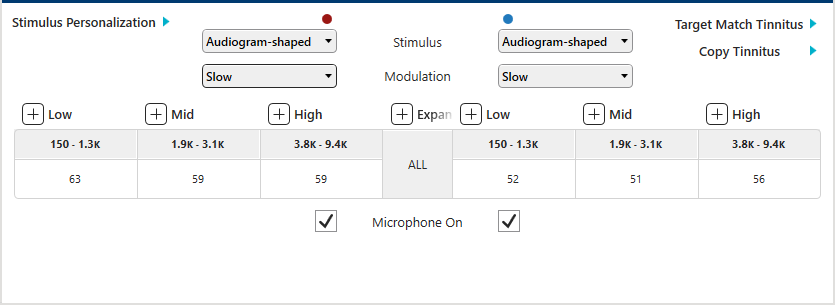
| Note: Only
the average numerical output values per frequency range
displays. The column headings indicate the frequency
range for that group when collapsed. The frequency range
of adjustment displays in a tool tip by pointing to the
column heading. |
Tip: If
more space is needed to view the tables, click  at the bottom
of Left Navigation Menu to hide the menu.
Click at the bottom
of Left Navigation Menu to hide the menu.
Click  to redisplay the menu.
|
- Click
 for the specific frequency range (Low, Mid, or High) or Expand All to display the numerical output values for all available bands within the frequency range or all bands respectively.
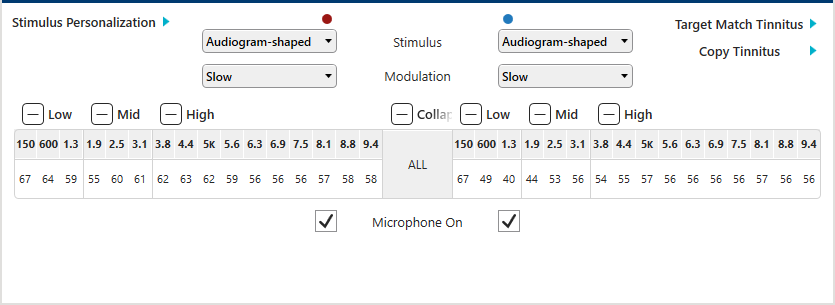
| Note: The
numerical table values always reference 2cc Coupler Output,
which may differ from the graphical view
currently selected. Only output graphs, including 2cc
Coupler Output and Real Ear Response, can be selected
to display. If 2cc Coupler Gain was selected prior
to accessing Tinnitus, Inspire automatically changes the
display to 2cc Coupler Output. If Predicted
Insertion Gain was selected prior to accessing Tinnitus,
Inspire automatically changes the display to Predicted
Real Ear Response. Audiometric thresholds are never displayed
even if Display Thresholds
and UCLs is selected via General Preferences. |
Tip: Click
 for the specific frequency range
(Low, Mid, or High) or Collapse All to hide the numerical
values. for the specific frequency range
(Low, Mid, or High) or Collapse All to hide the numerical
values.
|
-
| Note: If a memory is changed or Best Fit Current Memory is applied during any fitting, the Stimulus is automatically set to Off. If a memory is changed to Disabled or any Telephone memory, or Stream Boost is selected, Stimulus is disabled because tinnitus is not supported in these memories. |
-
- Select the Stimulus from the drop down list.
| Note: If
the output level was adjusted in one or more bands within
the memory and then a different Stimulus is selected,
all previous adjustments are automatically cleared. |
- Select the Rate of Modulation from the drop down list.
| Note: The
rates available are Off,
Slow, Medium,
and Fast. The
default is Off.
|
- Click on the frequency or group of frequencies to adjust.
| Tip: To select a sequential group of frequencies, click on the beginning column header or frequency cell, press and hold Shift and click on the ending column header or frequency cell and all columns or frequencies between the two clicks will be selected, or press and hold the left mouse button and drag to the left or right until the desired group of frequencies are selected and then release the left mouse button. To select a non-sequential group of frequencies within a row, press and hold Ctrl and click on the desired frequencies. To select all frequencies, click All. Selected frequencies are represented in dark purple on the fitting graph and blue on the table. |
- Click
 or
or  within the table to increase or decrease the output binaurally or for the ear side selected.
| Note: The
adjustment arrow keys only display when the mouse hovers
over the selected frequencies. |
| Tip: To
reset the current memory's or all linked memories'
output settings back to their original defaults, which
are based on the Stimulus selected, click Target
Match Tinnitus. |
- Check or uncheck Microphone On to enable or disable the hearing aid's microphone.
| Note: If
the microphone is disabled, a "Tinnitus Only Microphone
Off" watermark appears across the frequency response
curve and all features (e.g., sound manager, frequency
lowering, etc.) are turned off and disabled. |
- To copy the settings to another memory, click Copy Tinnitus.
- Select the destination memory from the drop down list.
- Click Copy.
| Note: All
settings in the origination memory were automatically
copied to the destination memory. |
- To copy the settings to another memory, repeat steps 13-14.
Stimulus PersonalizationStimulus Personalization
- Click Stimulus Personalization.
| Note: This
button is only enabled during a live fitting and for
all memories except Disabled, any Telephone memory,
and Stream Boost. |
| Note: Both
the Minimum Detection Level (MDL) and Minimum Masking
Level (MML) tests must be measured within all three
frequency groupings (low, mid, and high) in order to generate
a customized stimulus. |
Tip: Click
 for more information
on the test. for more information
on the test.
|
-
- To test the Minimum Detection Level (MDL) in
the low frequency channels, click Stimulus.
To start the test in the mid or high frequency channels, click
 and then click Stimulus. A continuous stimulus is presented
in both ears simultaneously, if applicable, and a blue
frame displays around the fitting graph.
and then click Stimulus. A continuous stimulus is presented
in both ears simultaneously, if applicable, and a blue
frame displays around the fitting graph.
| Note: The
hearing aid(s) is automatically muted during the measurement
and the Stimulus
button changes to Pause.
Click Pause to pause the
stimulus presentation and unmute the aid(s). |
| Tip: Click
Cancel at any time to cancel
Stimulus Personalization. If viewing or retesting existing
measurements and Cancel is selected, all new and existing
measurements will be lost.
|
- Click
 or
or  to
increase or decrease the sound level in 2 dB increments if necessary.
to
increase or decrease the sound level in 2 dB increments if necessary.
- Once the measurement is complete in the selected
frequency channels, click or
 to test the next grouping.
| Note: The
hearing aid(s) is automatically unmuted, and the Pause button changes
back to Stimulus.
A solid dark
purple line at the top indicates the MDL for the
grouping tested. |
- Click Stimulus.
| Note: The
hearing aid(s) is automatically muted during the measurement
and the Stimulus
button changes to Pause.
Increase or decrease the sound level if necessary. |
- Repeat steps 5-6 to test MDL in the last frequency
grouping.
- Click Next to proceed
to Minimum Masking Level (MML).
| Note: This
button is only enabled if MDL was measured in all three
frequency groupings. A solid dark
purple line at the top indicates the MDL for all
groupings. |
- Repeat steps 3-7 to test MML.
| Note: A
solid light
purple line at the top indicates the MML for all
groupings. |
| Note: If
the channels within the selected frequency grouping cannot
be measured due to tolerance, maximum level reached, etc.,
click Could Not Test for
the applicable ear side to bypass that grouping. Inspire
stops the stimulus presentation in the specific ear side
and mutes the channels, which no longer display on the
graph. If 'Could Not Test' was selected in error or you
want to retest, navigate to the grouping, and click Could Not Test again. To redisplay
the channels on the graph, click
to increase the dB sound level, which unmutes the channels. |
- Click Apply to apply
the customized shape and close Stimulus Personalization.
| Note: This
button is only enabled if MML was measured in all three
frequency groupings. |
| Note: The
customized shaping displays on the graph and ‘Custom’
is selected from the Stimulus drop down list per applicable
ear side. Any frequency grouping marked 'Could Not
Test' is hidden on the graph. |

 to adjust all memories simultaneously.
 created in the Thrive Hearing Control app for
 or
or  .
.