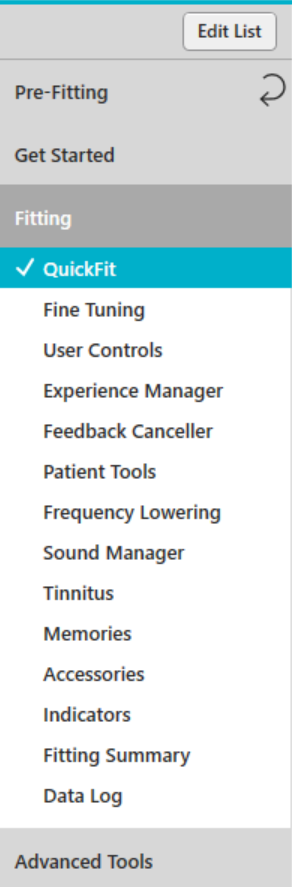
Inspire is designed to provide an easy method of navigation and allows you to always know where you are and where you've been. The navigation for all sections of the software is contained in the Left Navigation Menu on the left hand side of the screen.
The Left Navigation Menu contains four sections: Pre-Fitting, Get Started, Fitting, and Advanced Tools. The menu items under Fitting and Advanced Tools can be customized, therefore, most items can be arranged in the order in which you fit patients or hidden. Most items under Fitting can be moved to Advanced Tools and all items under Advanced Tools can be moved to Fitting if desired. All menu items can be reset back to their original location and unhidden at any time. The Left Navigation Menu can be customized per user if Inspire is launched from within Noah, PatientBase, or ProHear.
Expanding, Collapsing, and NavigatingExpanding, Collapsing, and Navigating
Only one section can be expanded at a time, therefore, if Fitting
is expanded and then Advanced Tools is expanded, Fitting is automatically
collapsed. Clicking on any text will change the screen to bring that
particular section into view. For any Fitting, Data Log, or Advanced
Tools sections visited during the current fitting session, a checkmark
 appears to the left of its name on the Left Navigation Menu. The Left
Navigation Menu also highlights the currently selected section of
the software.
appears to the left of its name on the Left Navigation Menu. The Left
Navigation Menu also highlights the currently selected section of
the software.
Some items on the Left Navigation Menu may expand to offer further selections. For example, clicking Data Log expands to show several selections including detailed information on other features, which vary according to the product connected or selected. These features may include Self Learning, Self Check, and LifeScape Analyzer.
If navigating between sections during the current fitting, the last screen visited in that section automatically displays when returning to that section. For example, if you're currently visiting Memories under Fitting and you click Advanced Tools, Audiometer displays. If you click Fitting, Memories redisplays because that was the last screen visited in that section.
When fine turning specific products or configuring Tinnitus, the
Left Navigation Menu can be collapsed to allow more space when viewing
tables. Click  at the bottom of Left Navigation
Menu to hide the menu and click
at the bottom of Left Navigation
Menu to hide the menu and click  to redisplay the menu.
If a performance update is available, Self Learning was applied, or
there are hearing aid configuration issues (e.g., multiple memories
are enabled but the patient cannot access them, tinnitus is disabled,
etc.), an alert 
 displays
to the right of Fitting
on the Left Navigation Menu. Details regarding the conflict(s) along
with hyperlinks to applicable screens display in a tool tip by pointing
to the alert
displays
to the right of Fitting
on the Left Navigation Menu. Details regarding the conflict(s) along
with hyperlinks to applicable screens display in a tool tip by pointing
to the alert 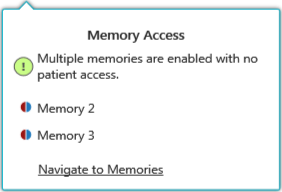 . If there
are multiple conflicts, they're listed in order of importance. Conflicts
that are required to change are listed first, recommended changes
are listed second, and informational items are listed last. Once the
conflict(s) is resolved, the alert disappears.
. If there
are multiple conflicts, they're listed in order of importance. Conflicts
that are required to change are listed first, recommended changes
are listed second, and informational items are listed last. Once the
conflict(s) is resolved, the alert disappears.
| Note: Based on the hearing aid(s) simulated or connected determines the menu items available. QuickFit cannot be moved to Advanced Tools. |
| Note: QuickFit cannot be hidden. |

| Note: If an item is hidden but that screen is accessed via a link from an alert or other screen (e.g., QuickFit, Fitting Summary, etc.), that menu item is automatically rechecked and redisplays on the Left Navigation Menu. |
| Note: All menu changes apply to all products and any Inspire edition and/or language selected via Configuration Preferences. |
| Tip: Click Cancel to not save the changes. |
| Tip: Click Cancel to cancel the reset. |