Drag and Drop Graphical Adjustments
An entire curve, multiple frequencies, or a single frequency can be adjusted graphically by dragging and dropping points on the frequency response curve. Points on the graphical response curves are indicated by an empty circle  , called a grab handle. The number of grab handles available is based on the number of channels available in the hearing aid. A shaded region will appear whenever a grab handle is selected, indicating the adjustment range for that particular control. Graphical adjustments can only be made via Quick Fit, Verify Comfort, Fine Tuning, and any graphical view except Multicurve.
- Connect and select the desired hearing aid(s) to adjust via Connect.
-
Click Connect.
- Click Quick Fit or Fine Tuning.
-
Click on the specific program to adjust if applicable, or click
 to adjust all programs simultaneously.
Note: If one-way program linking is enabled  , only gain and output adjustments made to *Personal will be applied simultaneously to all one-way linked programs. Custom programs
  created in the My Starkey mobile application can be adjusted during a live fitting. See Adjusting Custom Programs During a Live Fitting for more information.
 -
Pro Fit automatically defaults to a binaural
 view if applicable. To adjust only the right or left hearing aid, click
  or
or  .
.Note: If fitting CROS/BiCROS devices, only the receiver aid can be adjusted; therefore, the side cannot be selected. - Click on the desired grab handle to adjust a single frequency. To adjust a sequential group of frequencies, click on the beginning grab handle, press and hold Shift, and click on the ending grab handle, and all grab handles between the two clicks will be selected. To adjust a non-sequential group of frequencies, press and hold Ctrl and click on the desired grab handles. To adjust an entire curve, click on the response curve directly, and all grab handles will be selected.
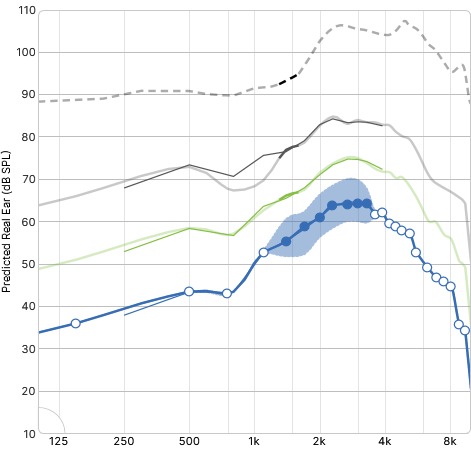
Note: Selected grab handles are indicated by a solid circle  and a shaded region shows the range of potential adjustments around the grab handles.
 - Drag any selected grab handle to the desired position and release, and all highlighted points will move together, if applicable. The response of the hearing aid snaps to the closest possible settings.
Tip: Press the Up or Down arrow keys or the Page Up or Page Down keys to drag the grab handles. - Click anywhere on the graph to release the grab handles from their highlighted state to make a different adjustment if desired.