Accessories
Accessories pair and configure additional devices to adjust volume, program, etc., using a remote control or stream audio from a mobile phone, MP3 player, computer, television, DVD player, remote microphone, etc., directly to wireless hearing aids. Starkey offers several accessories that can be synced with wireless hearing aids. Click on any accessory below for more information.
- StarLink Edge Remote MicStarLink Edge Remote Mic - Streams audio from its built-in microphones.
The Remote Microphone (Remote Mic) streams audio from its built-in microphones directly to Omega AI and Edge AI wireless hearing aids. When worn by a distant speaker in noisy environments, the Remote Mic is an assistive listening device.
Streaming starts automatically when the Remote Mic is turned on and aids are paired to the device. Streaming stops automatically when the Remote Mic is turned off. The patient can adjust the volume via the Remote Mic or hearing aid user control (if configured for this function). The hearing aids can also be programmed for audio streaming only or audio streaming plus microphone to allow environmental sounds to be heard during audio streaming.
Below is a picture of the Remote Mic and descriptions of the buttons. See the Remote Microphone User Manual for instructions on setting up and operating the accessory or viewing instructional videos. For assistance with solving Remote Mic issues, see Troubleshooting Accessories.
Remote Microphone Remote Microphone Button Description 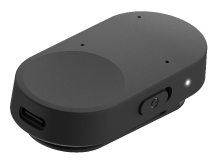
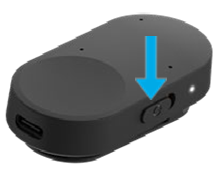
Turns the Remote Mic On/Off. Sliding the switch toward the LED powers on the Remote Mic and sliding the switch away from the LED powers off the Remote Mic.


Increases and decreases the stream volume. Pressing the button for two seconds cycles through the available programs.

Pairs the hearing aid(s) to the Remote Mic.
The Remote Mic can be synced with one left and one right hearing aid. When hearing aids are synced with the Remote Mic, any previously synced hearing aids will be automatically deleted. The operating range from the Remote Mic to the hearing aids is 15 meters or 50 feet. If the Remote Mic is affixed to clothing or worn on a lanyard, it should be within 20 centimeters or 8 inches of the speaker’s mouth.
- Remote Microphone +Remote Microphone + - Streams audio from different audio sources (e.g., companion mic, Bluetooth device, FM system, etc.).
The Remote Microphone + (Remote Mic +) streams audio from different audio sources directly to G Series AI and Genesis AI wireless hearing aids. When worn by a distant speaker in noisy environments, the Remote Mic + is an assistive listening device. The Remote Mic + can also interface with the following audio sources:
- Bluetooth (such as a mobile phone)
- Teleloop Systems
- FM Systems
- Line-In Audio
If the microphone is worn on the body, it automatically prioritizes sound from above while reducing sound levels from other directions. This is useful if listening to a single speaker when background noise is present. If the microphone is placed horizontally (on its clip), it receives sound from all directions (omni). This setting is useful for listening to multiple nearby speakers in quiet environments. To receive audio from other inputs, either the Remote Mic + must be paired to a Bluetooth device, an attached FM receiver, or an optional line-in cable connected to the microUSB jack.
Streaming starts automatically when the Remote Mic + is turned on and aids are paired to the device. The patient can start/stop streaming and/or adjust the volume via the Remote Mic +, Remote (if the Favorite button is configured for Accessory Start/Stop), the My Starkey mobile application, or hearing aid user control (if configured for these functions). The hearing aids can also be programmed for audio streaming only or audio streaming plus microphone to allow environmental sounds to be heard during audio streaming.
Below is a picture of the Remote Mic + and descriptions of the buttons. See the Remote Microphone + User Manual for instructions on setting up and operating the accessory or viewing instructional videos. For assistance with solving Remote Mic + issues, see Troubleshooting Accessories or FAQ's.
Remote Microphone + Remote Microphone + Button Description 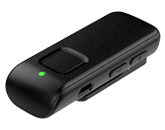
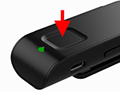
Turns the Remote Mic + On/Off and controls phone calls. Pressing the button for two seconds and releasing powers on or off the Remote Mic +.
Increases and decreases the stream volume.
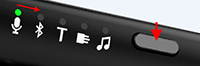
Cycles the audio source to the next available input. Direct Audio Input and Line-In Audio are only available if physically attached to the Remote Mic +.
The Remote Mic + can be synced with one left and one right hearing aid. The Remote Mic + can be paired with up to eight Bluetooth devices and concurrently connected with up to two. When hearing aids are synced with the Remote Mic +, any previously synced hearing aids will be automatically deleted. The operating range from the Remote Mic + to the hearing aids is 20 meters or 60 feet. If the Remote Mic + is affixed to clothing or worn on a lanyard, it should be within 20 centimeters or 8 inches of the speaker’s mouth.
- TV StreamerTV Streamer - Streams audio from a television or other electronic audio sound sources.
The StarLink Edge and StarLink TV (TV Streamer) can be successfully connected to many electronic audio sources, including televisions, computers, MP3 players, DVD players, and cable boxes. It streams audio from an electronic audio source or external microphone directly to Omega AI, Edge AI, G Series AI, and Genesis AI wireless hearing aids, respectively. The patient can start/stop streaming and/or adjust the volume via the TV Streamer (StarLink only), Remote (if the Favorite button is configured for Broadcast Start/Stop or Accessory Start/Stop), the My Starkey mobile application, or hearing aid user control (if configured for these functions). The hearing aids can also be programmed for audio streaming only or audio streaming plus microphone to allow environmental sounds to be heard during audio streaming.
Below is a picture of the StarLink Edge TV Streamer (for Omega AI and Edge AI products) and descriptions of the buttons. See the StarLink Edge TV User Manual for instructions on setting up and operating the accessory or viewing instructional videos. For assistance with solving TV Streamer issues, see Troubleshooting Accessories.
StarLink Edge TV Streamer TV Streamer Control Button Description 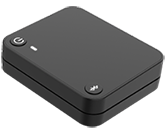

Turns the TV Streamer On/Off. The LED illuminates blue when the device is on and streaming audio.
Pairs the hearing aid(s) to the TV Streamer. The LED rapidly blinks blue while pairing mode is active.
Below is a picture of the StarLink TV Streamer (for G Series AI and Genesis AI products) and descriptions of the buttons. See the StarLink TV User Manual for instructions on setting up and operating the accessory or viewing instructional videos. For assistance with solving TV Streamer issues, see Troubleshooting Accessories or FAQ's.
StarLink TV Streamer TV Streamer Control Button Description 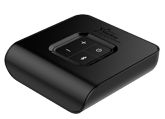
Turns the TV Streamer On/Off. The LED illuminates blue when the device is on and streaming audio.
Increases and decreases the audio stream volume.
Pairs the hearing aid(s) to the TV Streamer. The LED rapidly blinks blue while pairing mode is active.
The TV Streamer can stream audio to an unlimited number of users. The audio streaming range to the hearing aids is 15 meters or 50 feet. This allows the patient to move freely and still receive the audio signal.
- Mini Remote MicrophoneMini Remote Microphone - Streams audio from its built-in microphone.
The Mini Remote Microphone (Mini Remote Mic) streams audio from its built-in microphone directly to G Series AI and Genesis AI wireless hearing aids. When worn by a distant speaker in noisy environments, the Mini Remote Mic is an assistive listening device.
Streaming starts automatically when the Mini Remote Mic is turned on and aids are paired to the device. The patient can start/stop streaming and/or adjust the volume via the Remote (if the Favorite button is configured for Accessory Start/Stop), the My Starkey mobile application, or hearing aid user control (if configured for these functions). Streaming also stops automatically when the Mini Remote Mic is turned off. The hearing aids can also be programmed for audio streaming only or audio streaming plus microphone to allow environmental sounds to be heard during audio streaming.
Below is a picture of the Mini Remote Mic and a description of the button. See the Mini Remote Microphone User Manual for instructions on setting up and operating the accessory or viewing instructional videos. For assistance with solving Mini Remote Mic issues, see Troubleshooting Accessories or FAQ's.
Mini Remote Microphone Mini Remote Microphone Button Description 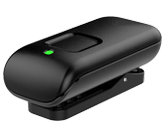
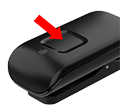
Turns the Mini Remote Mic On/Off. Pressing the button for three seconds and releasing powers on the Mini Remote Mic and pressing the button for two seconds and releasing powers off the Mini Remote Mic.
The Mini Remote Mic can be synced with one left and one right hearing aid. When hearing aids are synced with the Mini Remote Mic, any previously synced hearing aids will be automatically deleted. The operating range from the Mini Remote Mic to the hearing aids is 20 meters or 60 feet. If the Mini Remote Mic is affixed to clothing or worn on a lanyard, it should be within 20 centimeters or 8 inches of the speaker’s mouth.
- Table MicrophoneTable Microphone - Streams audio from its built-in microphones in various environments (e.g., microphone is placed on a table, worn by a companion or speaker, etc.) or from a television.
The StarLink Edge and StarLink Table Microphone (Table Mic) streams audio from its built-in microphones directly to Omega AI, Edge AI, G Series AI, and Genesis AI wireless hearing aids, respectively. When placed on a table or worn by a distant speaker in noisy environments, the Table Mic functions as an assistive listening device. The StarLink Table Mic also streams audio from a television via the line-in cable.
If the microphone is placed on a table, it can either follow the main speaker automatically, focus on one or two selected speakers, or receive sound from multiple speakers in all directions (omnidirectional). The omnidirectional setting is useful for listening to multiple nearby speakers in quiet environments. If the microphone is worn on the body, it automatically prioritizes sound from above while reducing sound levels from other directions. This is useful if listening to a single speaker when background noise is present.
Streaming starts automatically when the Table Mic is turned on, and aids are paired to the device. Streaming stops automatically when the Table Mic is turned off. The patient can adjust the StarLink Edge Table Mic volume via the My Starkey mobile application, or hearing aid user control (if configured for this function). The patient can start/stop streaming the StarLink Table Mic and/or adjust the volume via the Remote (if the Favorite button is configured for Accessory Start/Stop), the My Starkey mobile application, or hearing aid user control (if configured for these functions). The hearing aids can also be programmed for audio streaming only or audio streaming plus microphone to allow environmental sounds to be heard during audio streaming.
Below is a picture of the Table Mic and descriptions of the buttons. See the StarLink Edge Table Microphone User Manual or StarLink Table Microphone User Manual for instructions on setting up and operating the accessory, or view instructional videos. For assistance with solving Table Mic issues, see Troubleshooting Accessories.
Table Microphone Table Microphone Control Button Description 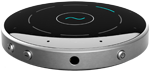
Turns the Table Mic On/Off. The LED illuminates blue when the device is on and streaming audio. The illuminated blue segment(s) indicates the listening direction(s).
Increases and decreases the audio stream volume.
The Table Mic can be synced with one left and one right hearing aid. When hearing aids are synced with the Table Mic, any previously synced hearing aids will be automatically deleted. The operating range from the Table Mic to the hearing aids is 15 meters or 50 feet for the StarLink Edge, and 10 meters or 30 feet for the StarLink. If the Table Mic is worn on a lanyard around the neck, it should be within 20 centimeters or 8 inches of the speaker’s mouth.
- Remote ControlRemote Control - Adjusts volume, changes programs, mutes/unmutes the hearing aids, and starts/stops accessory or audio streaming from the Remote Microphone + or TV.
The Remote (Remote) adjusts the hearing aid and audio streaming volume, changes programs, mutes/unmutes the hearing aids, returns them to the Home setting (Program 1 and their programmed volume control setting), and configures the Favorite button to perform a specific function.
Below is a picture of the Remote Control 2.0 and descriptions of the buttons. See the Remote User Manual for instructions on operating the accessory or viewing instructional videos. For assistance with solving Remote Control issues, see Troubleshooting Accessories or FAQ's.
Remote Control 2.0 Remote Control Button Description 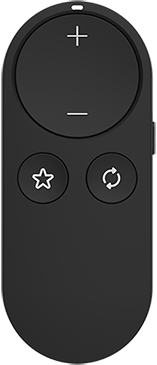

Increases the hearing aid or audio streaming volume.

Decreases the hearing aid or audio streaming volume.

Cycles through the available programs.

Performs the programmed function (e.g., stop/start audio streaming, control noise, etc.) and pairs the hearing aids with the Remote Control.

Locks and unlocks the remote control. To lock the remote control to prevent adjustments from occurring if a button is pressed inadvertently, slide the switch down to expose orange. To unlock the remote control, slide the switch up.

Below is a picture of the Remote Control 1.0 and descriptions of the buttons. See the Remote User Manual for instructions on operating the accessory, or view instructional videos. For assistance with solving Remote Control issues, see Troubleshooting Accessories or FAQ's.
Remote Control 1.0 Remote Control Button Description 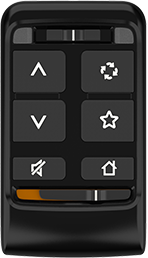

Selects if the left, both, or right hearing aid will be adjusted. To adjust the left hearing aid, slide the switch to the left, and the blue light illuminates. To adjust both hearing aids, slide the switch to the middle (as shown). To adjust the right hearing aid, slide the switch to the right, and the red light illuminates.

A short press increases the volume on the hearing aids, and a long press increases the audio streaming volume from an accessory. For CROS/BiCROS products, the volume will be increased on both the receiver aid and transmitter regardless of the slider switch position.

A short press decreases the volume on the hearing aids, and a long press decreases the audio streaming volume from an accessory. For CROS/BiCROS products, the volume will be decreased on both the receiver aid and transmitter regardless of the slider switch position.

Mutes and unmutes the hearing aids. Pressing any other button will also unmute the hearing aids and perform the button's function. For 2.4 GHz CROS/BiCROS products, regardless of the slider switch position, all microphones on both the receiver aid and transmitter will be muted. If the slider switch is on the receiver side, all microphones on the receiver aid and audio streaming to the receiver aid will be muted. If the slider switch is on the transmitter side, all microphones on the transmitter will be muted, and no audio streaming will be sent to the receiver aid.

Cycles through the available programs.

Performs the programmed function (e.g., stop/start audio streaming, control noise, etc.).

Returns the hearing aids to Program 1 at their startup volume level and pairs the hearing aids with the Remote Control.

Locks and unlocks the remote control. To lock the remote control to prevent adjustments from occurring if a button is pressed inadvertently, slide the switch to the right to expose orange. To unlock the remote control, slide the switch to the left (as shown).
The operating range from the remote control to the hearing aids should be within 1 meter or 39 inches. This allows the patient to operate the remote control at arm's length from their pockets, purses, etc.
Settings for the hearing aid microphone while streaming and the streaming sound equalizer can be configured for streaming accessories and the phone. A Favorite button function can be configured for the Remote Control to stop/start accessory or audio streaming, activate/deactivate Edge Mode+, etc.
- Connect and select the desired wireless hearing aid(s) to configure via Connect.
-
Click Connect.
- Click Accessories from the Left Navigation Menu.

Note: This feature is unavailable in some manufacturers' software for specific Pro Fit editions and languages selected via Configuration Preferences. Tip: Click Accessories via Audio Streaming to access. - Pair accessoriesaccessories.
* These accessories can be paired with the aids inside or outside Pro Fit. The undo stack is automatically cleared if added or deleted inside Pro Fit.
** A maximum of ten accessories in any combination can be paired with the aids. If the maximum is paired and another accessory is paired, the first accessory paired will be removed.Field Name Description Details Pair Omega AI and Edge AI Products Streaming Mic Accessories* Pairs up to ten remote and/or table mics and deletes paired accessories.** Click How to Pair Accessories for instructions. To remove a paired accessory, click  .
.Broadcast Devices* Pairs up to ten TV streamers and deletes paired TVs.** Click How to Pair Accessories for instructions. TVs display in the order in which they are paired. To remove a paired TV, click .Remote Control* Pairs up to ten remote controls.** Click How to Pair Accessories for instructions. Remote controls display in the order in which they are paired. To remove a paired remote control, click .Pair G Series AI and Genesis AI Products Accessories* Pairs up to five remote microphone +s, mini remote mics, TV streamers, and/or table mics, and deletes paired accessories. Click pairing information for instructions. Accessories display in the order in which they are paired. If the maximum streaming accessories are paired to the hearing aids and another streaming accessory is paired, the first accessory paired will be removed. To remove a paired accessory, click .Remote* Pairs a remote control. Click pairing information for instructions. Only one remote control can be paired with the hearing aids. To pair a different remote, click  .
. - Configure the paired accessoriesaccessories and/or phone.
Field Name Description Details Configure Omega AI and Edge AI Products Streaming Mic Accessories
Hearing aid mic while streaming Selects if the hearing aids' microphone should turn off, on, or be reduced during audio streaming via all mic accessories. The options available are Mic On, Mic Reduced, and Mic Off. The default is Mic Off if any aid has an 'open' configuration, or Mic Reduced, if all aids have an 'occluded' configuration. If a Best Fit is performed on a specific program or all programs, the microphone setting will automatically be reset to either Mic Off or Mic Reduced based on acoustic configuration. Streaming sound Selects the stream sound equalizer while streaming via all mic accessories. The options are Equalized, Bass Boost (boosts low-frequency channels), Treble Boost (boosts high-frequency channels), and Overall Boost (boosts both low and high-frequency channels). The default is Equalized. The streaming sound selected applies to all mic accessories. Broadcast Devices
Hearing aid mic while streaming Selects if the hearing aids' microphone should turn off, on, or be reduced during audio streaming via all broadcast devices. The options available are Mic On, Mic Reduced, and Mic Off. The default is Mic Off if any aid has an 'open' configuration, or Mic Reduced, if all aids have an 'occluded' configuration. If a Best Fit is performed on a specific program or all programs, the microphone setting will automatically be reset to either Mic Off or Mic Reduced based on acoustic configuration. Streaming sound - TV Streamer Selects the stream sound equalizer while streaming via the TV Streamer. The options are Equalized, Bass Boost (boosts low-frequency channels), Treble Boost (boosts high-frequency channels), and Overall Boost (boosts both low and high-frequency channels). The default is Equalized. The streaming sound selected applies to all paired TVs. Auto Start Stream Enables/disables automatic streaming from all broadcast devices in select products. If On is selected, which is the default, streaming starts automatically when detected. If Off is selected, streaming must be started manually. Bluetooth Devices
Hearing aid mic while streaming Selects if the hearing aids' microphone should turn off, on, or be reduced during audio streaming via all Bluetooth devices. The options available are Mic On, Mic Reduced, and Mic Off. The default is Mic Reduced. If a Best Fit is performed on a specific program or all programs, the microphone setting will automatically be reset to Mic Reduced. Streaming sound Selects the stream sound equalizer while streaming music, videos, etc. via all Bluetooth devices. The options are Equalized, Bass Boost (boosts low-frequency channels), Treble Boost (boosts high-frequency channels), and Overall Boost (boosts both low and high-frequency channels). The default is Equalized. The streaming sound selected applies to all paired Bluetooth devices. Phone call sound Selects the stream sound equalizer while streaming a phone call via all Bluetooth devices. The options are Equalized, Bass Boost (boosts low-frequency channels), Treble Boost (boosts high-frequency channels), and Overall Boost (boosts both low and high-frequency channels). The default is Equalized. The streaming sound selected applies to all paired Bluetooth devices. Remote Control
Favorite Button Selects the function that the Favorite button will initiate. The options are None, HomeHome, Broadcast Start/Stop, Edge Mode+, Jump to Program 4 (select products only and Program 4 must be enabled), and Tinnitus On/Off. The default is Home. Configure G Series AI and Genesis AI Products Accessories
Hearing aid mic while streaming Selects if the hearing aids' microphone should turn off, on, or be reduced during audio streaming via the Remote Mic +, Mini Remote Mic, Table Mic, and/or TV. The options available are Mic On, Mic Reduced, and Mic Off. The default is Mic Off if any aid has an 'open' configuration, or Mic Reduced, if all aids have an 'occluded' configuration. If a Best Fit is performed on a specific program or all programs, the microphone setting will automatically be reset to either Mic Off or Mic Reduced based on acoustic configuration. Streaming sound Selects the stream sound equalizer while streaming via the accessory type. The options are Equalized, Bass Boost (boosts low-frequency channels), Treble Boost (boosts high-frequency channels), and Overall Boost (boosts both low and high-frequency channels). The default is Equalized. If more than one accessory type (e.g., two TVs, two Table Mics, etc.) are paired, the setting must be the same for both accessories of the same type. Remote
Favorite Button Selects the function that the Favorite button will initiate. The options are None, HomeHome, Accessory Start/Stop, Edge Mode+, Jump to Program 4 (Program 4 must be enabled), and Tinnitus On/Off. The default is Home. Phone
Hearing aid mic while streaming phone Selects if the hearing aids' microphone should turn off, on, or be reduced during audio streaming via the phone or other media (e.g., OrCam, iPad, etc.) specifically. The options available are Mic On, Mic Reduced, and Mic Off. The default is Mic Reduced. If a Best Fit is performed on a specific program or all programs, the microphone setting will automatically be reset to Mic Reduced. Streaming sound Selects the stream sound equalizer while streaming via the phone (non-iOS phone call) or other media specifically. The options are Equalized, Bass Boost (boosts low-frequency channels), Treble Boost (boosts high-frequency channels), and Overall Boost (boosts both low and high-frequency channels). The default is Equalized. Phone calls (iPhone only) Selects the stream sound equalizer while streaming an iOS phone call via an iPhone specifically. The options are Equalized, Bass Boost (boosts low-frequency channels), Treble Boost (boosts high-frequency channels), and Overall Boost (boosts both low and high-frequency channels). The default is Equalized.