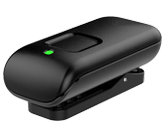
FAQ's
Click on the category below and then the FAQ for more information.
Setup
- Any electronic device with an Audio Output jack (Analog 3.5mm, Analog RCA, Digital Optical Toslink) can be directly connected to the TV Streamer.
- We suggest the options below during the initial setup.
Connector Type Item (Connects to Audio Source) Item (Connects to back of TV Streamer) TV Streamer Jack Part Number 
Digital Toslink Cable Digital Toslink Cable B 90972-000 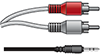
Analog RCA (red-white) Cable 3.5 mm diameter male jack C 90973-000 
(optional – not shipped with product)
3.5 mm diameter male jack 3.5 mm diameter male jack C 43016-000 Toslink Splitter
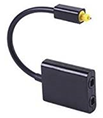
(optional – not shipped with product)
Male connector on Toslink Splitter Separate Toslink cable attached to both Toslink Splitter and TV Streamer B 43019-000 - See "Connecting to Audio Sources" in the TV User Manual for more information.
- No. If a television (or other electronic audio source) does not have a Toslink or analog audio output, then the Remote Microphone + may be a better solution to stream audio from the television speaker.
- The optional Toslink Splitter (part# 43019-000) allows two Toslink cables to share one television output jack. It is a simple solution when you want a soundbar and a TV Streamer to share the same Toslink output.
- When initially setting up the TV Streamer, a solid blue LED confirms that an electronic audio source is outputting audio at a detectable level and the cable is properly attached to the TV Streamer.
- Insert the enclosed AC power supply (part# 43010-000) into the wall plug and microUSB connector into jack A.
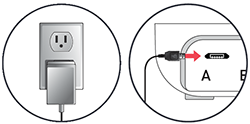
Can a battery operate the TV Streamer?Can a battery operate the TV Streamer?
- No. The TV Streamer must always be connected to an external power source.
- Move the rear Mono/Stereo slider switch to the left position.
 The mono setting impacts all listeners, including binaural hearing aid sets, which will receive a mono signal in both hearing aids. The TV Streamer will automatically convert incoming audio to mono, so nothing needs to be done at the audio source.
- An Amazon Echo Dot can be directly attached to the TV Streamer via a line-in cable (part# 43016-000). This allows a user to talk to “Alexa” and her responses will be streamed via our accessory to their hearing aids. With the line-in cable attached, the integrated speaker on the Amazon Echo Dot mutes. Note: The Amazon Echo does not have a line-out capability.
- Caveats:
- The user must manually start streaming in their hearing aids before receiving Alexa’s voice.
- If the user is already streaming audio from their Toslink cable, then Alexa’s voice will not be streamed.
- After Alexa’s voice stops, the hearing aids will remain streaming for 60 seconds before automatically timing out and returning to hearing aid mic only mode. The user can also manually stop the stream at any time.
- For a better user experience, the Remote Mic + provides a classic Bluetooth connection to an Amazon Echo Dot or Amazon Echo.
System Behavior
What are my options to Start streaming?What are my options to Start streaming?
- Open My Starkey mobile application and tap
 from the TV Streamer.
 - Press the Favorite “star” button on Remote Control. Within Pro Fit, the Favorite “star” button must be assigned the “Accessory Start/Stop” functionality.
- Use hearing aid user control. A specific gesture (e.g., a long press on a push button or double tap) can start streaming if configured via User Controls. Note: Ear to Ear commands are fully supported.
What are my options to Stop streaming?What are my options to Stop streaming?
- Open My Starkey mobile application and tap
 from the TV Streamer.
 - Turn off the TV Streamer.
- Incoming audio signal is not detected from the audio source. For example, turn off the audio source.
- Press the Favorite “star” button on Remote Control. Within Pro Fit, the Favorite “star” button must be assigned the “Accessory Start/Stop” functionality.
- Use hearing aid user control. A specific gesture (e.g., a long press on a push button or double tap) can stop streaming if configured via User Controls. Note: Ear to Ear commands are fully supported.
- A phone call will interrupt the TV Streamer's audio stream. After a phone call concludes, all streaming stops. The TV Streamer audio stream will need to be manually restarted if desired.
- Note: This could be either an incoming call to an iPhone directly connected to hearing aids or to a cell phone connected to hearing aids via Remote Mic +.
- Walking out of range will interrupt the TV Streamer's audio stream and stop the streaming. When back in range, the TV Streamer audio stream can be manually restarted if desired.
What information does the LED indicator provide?What information does the LED indicator provide?
- The front LED indicator provides helpful information about the TV Streamer:
LED Current State Off
Power is off.
Solid Green
Power is on, but the audio is not streaming.
Solid Blue
Power is on and streaming audio.
Blinking Blue
Hearing aid pairing mode is active.
Solid Red
Possible fault condition.
How can I increase the audio streaming volume?How can I increase the audio streaming volume?
- Press the
 button on the TV Streamer.
 - Open My Starkey mobile application and increase the Streaming Volume.
- Use hearing aid user control. A specific gesture (e.g., a short or long press on a push button) can increase streaming if configured via User Controls. Note: Ear to Ear commands are fully supported.
- Long press the volume
 button on the Remote Control.
 - If the electronic audio source output jack is set up for a Variable Audio level (e.g., audio output changes when using the volume controls on the electronic audio source), then you can increase the audio output level from that output jack.
How can I decrease the audio streaming volume?How can I decrease the audio streaming volume?
- Press the
 button on the TV Streamer.
 - Open My Starkey mobile application and decrease the Streaming Volume.
- Use hearing aid user control. A specific gesture (e.g., a short or long press on a push button) can decrease streaming if configured via User Controls. Note: Ear to Ear commands are fully supported.
- Long press the volume
 button on the Remote Control.
 - If the electronic audio source output jack is set up for a Variable Audio level (e.g., audio output changes when using the volume controls on the electronic audio source), then you can decrease the audio output level from that output jack. Note: This option may degrade audio quality.
- Yes, this can only be done via the Remote or hearing aid user control. This cannot be done via the My Starkey mobile application or via the streaming accessory.
- No. All audio streaming from a TV Streamer starts with a manual request.
- This may happen if the TV Streamer independently receives audio from a cable box or satellite receiver, which remains powered on. Attach the audio output cable directly to the television to have the audio stream stop when the television is turned off.
Hearing Aid Functionality
- Before streaming audio for the first time, your hearing aids must be associated with each unique TV Streamer.
- Yes, pairing can be done inside or outside of Pro Fit.
- See "Pairing" in the TV User Manual for more information.
- Click pairing information for instructions via Accessories.
- Power off both the hearing aid and CROS transmitter. Power on only the hearing aid, ensuring the CROS transmitter remains powered off during the pairing process.
- About 6”, but closer is even better.
- From My Starkey mobile application, tap Remove this Device on the Edit Accessories screen.
- From Pro Fit, click
 under the appropriate accessory image via Accessories.
 - It is not possible to delete a hearing aid pairing directly from the TV Streamer.
- If the saved Pro Fit session is loaded back into the hearing aids, any hearing aid pairings made after that session will be lost. To recover audio streaming capability, the patient must re-pair a hearing aid with the streaming accessory.
- The TV Streamer can stream to unlimited sets of hearing aids.
- Yes. Select “Hearing aid mic while streaming” in Accessories and choose the preferred mic level.
- Yes. The hearing aid mic level can be adjusted in numerous ways:
- Remote Control - Short press or button.
- Hearing aid user control - If configured via User Controls.
- Program change - The hearing aid mic level resets if Reset Levels on Program Change is enabled via User Controls.
- My Starkey mobile application - My settings>Audio streaming>Mic volume during stream.
- Remote Control - Short press
General
- G Series AI and Genesis AI wireless hearing aids.
- The TV Streamer transmits via a proprietary 2.4 GHz audio link.
- The Remote Mic + is designed with a typical 1v RMS for small electronics output, such as laptops, tablets, cell phones, etc. The TV Streamer is designed for large electronics output, with a typical 2v RMS, such as DVD players, cable boxes, televisions, etc. Using small electronics as an audio input to the TV Streamer will work, but the source audio may need to be elevated.
- We recommend purchasing a streaming accessory appropriate for the patient’s home location.
- Hearing aids can be paired with up to five streaming accessories.
- Typical operating range is up to 15 meters (~50 feet). Environmental factors, such as obstructions, interference, and human body positioning, may reduce operational range. Larger operational distances are achievable, though audio quality and connectivity may decrease.
- No. The TV Streamer automatically converts Dolby 5.1 audio input to stereo output.
Is the TV Streamer waterproof?Is the TV Streamer waterproof?
- No. Exposure to water or excessive moisture may damage the TV Streamer. If the TV Streamer is accidentally exposed to water or moisture, then:
- Power it down
- Wipe it dry with a soft, absorbent cloth
- Let it completely dry out before turning it back on
- Yes. On the Edit Accessories screen, tap the name and type in a unique TV Streamer name.
Performance and Compatibility
Which wireless hearing aids work with Remote?Which wireless hearing aids work with Remote?
- Remote is compatible with all 2.4 GHz wireless hearing aids.
What type of battery is used in the Remote?What type of battery is used in the Remote?
- Replaceable lithium coin battery RC2032 for the Remote Control 2.0 and non-replaceable, non-rechargeable lithium-ion battery for the Remote Control 1.0.
What is the lifespan of the Remote's battery?What is the lifespan of the Remote's battery?
- In typical usage, the Remote Control 2.0 battery should last at least one year, and the Remote Control 1.0 battery should last 5+ years.
- Yes. The Remote does not monitor the buttons when locked, reducing battery power requirements. This has the additional benefit of preventing inadvertent hearing aid changes.
What is the “wireless operating range” for Remote?What is the “wireless operating range” for Remote?
- Remote is designed to be used at distances up to arm’s length from hearing aids. Larger operational distances are achievable, though button command latency will increase and wireless connectivity with hearing aids will decrease.
- When a smartphone and Remote are paired to a hearing aid, the hearing aid prioritizes whichever command it receives first.
- Yes. Typically, the hearing aid changes will be immediately reflected on the smartphone.
Is the Remote waterproof?Is the Remote waterproof?
- No. Exposure to water or excessive moisture may damage it. If the Remote is accidentally exposed to water or moisture, then:
- Wipe it dry with a soft, absorbent cloth
- Let it completely dry out before using it
- When in the Unlocked position, Remote will not transmit unless a button is pressed. As long as no buttons are pressed, the Remote will not cause any interference.
- Environmentally, indoors will work better than outdoors.
- Direct line-of-sight from the Remote Control to hearing aids.
- The Remote Control uses Bluetooth Low Energy to communicate with hearing aids.
Professional Office Programming and Pairing
Who would be a candidate for a Remote?Who would be a candidate for a Remote?
- Patients without smartphones.
- Patients who prefer mechanical/tactile remote control buttons.
- Patients who prefer simplicity.
- See "Set up your Remote" in the Remote Control 2.0 User Manual or Remote Control 1.0 User Manual for more information.
- Power off both the hearing aid and CROS transmitter. Power on only the hearing aid, ensuring the CROS transmitter remains powered off during the pairing process.
- Only one Remote can be paired with hearing aids.
- Yes.
- No. Remote can only be paired with up to one Left and one Right hearing aid at a time.
- We suggest keeping hearing aids and Remote less than 6” or 15 cm apart. The pairing process may fail if a hearing aid is too far from Remote. There is no minimum distance between hearing aids and the Remote during the pairing process.
- Note: Keeping other Bluetooth devices at least 2 feet or 60 cm away during pairing is the best practice to minimize possible wireless interference.
- For best results, place the smartphone 2 feet or 60 cm (or more) away from the hearing aids and Remote during pairing to minimize wireless interference. If you still have difficulty pairing the hearing aids with the Remote, temporarily turn off Bluetooth on the smartphone.
- Hearing aids can be immediately discovered by a smartphone 15 seconds after a Remote button is pressed. The Remote can be powered off to reduce hearing aid discovery time by a smartphone.
- Hearing aids can be immediately discovered by a streaming accessory 15 seconds after a Remote Control button is pressed. To reduce hearing aid discovery time by the streaming accessory, the Remote Control can be powered off.
- Before starting the pairing mode on the Remote, open/close the battery door on one monaural hearing aid or both binaural hearing aids. For binaural hearing aids, it does not matter which hearing aid (left or right) is opened/closed first.
How do I delete paired hearing aids from Remote?How do I delete paired hearing aids from Remote?
- When hearing aids are successfully paired, all previously paired hearing aids will automatically be deleted from Remote.
- Each hearing aid can support up to 5 pairings. This total includes a combination of wireless programmers, iOS devices, and/or Android devices. Once the hearing aid exceeds five pairings, pairings are removed first-in, first-out.
-
For the Remote, pairing can occur inside or outside of Pro Fit.
- No. Hearing aids are always enabled to pair with Remote.
- "Home" is the default for the Remote.
- Favorite button options differ depending on the current hearing aid configuration. For example, if no tinnitus stimulus is enabled in the hearing aid, it will not appear in the Favorite button choices. See "Favorite" in the Remote Control 2.0 User Manual or Remote Control 1.0 User Manual for more information.
- The Tinnitus Stimulus On/Off feature toggles the Stimulus on/off, if available, in the current hearing aid program. It does not initiate a program change in the hearing aids.
- No. The Favorite button only affects accessory streaming.
- After hearing aid servicing, the best practice is always to encourage manual re-pairing the hearing aids with the Remote Control. However, depending on what is done to the hearing aids during servicing, they may still operate with the Remote Control.
Miscellaneous
Can I use a lanyard with Remote?Can I use a lanyard with Remote?
- Yes. The Remote Control 2.0 comes with an attached lanyard but can be purchased separately for the Remote Control 1.0 if desired. See "Lanyard" in the Remote Control 1.0 User Manual for more information.
Does the Remote include a belt clip configuration?Does the Remote include a belt clip configuration?
- The Remote Control does not include an integrated belt clip design.
What wireless system is Remote using?What wireless system is Remote using?
- Remote Control communicates with hearing aids via Bluetooth Low Energy.
- The accessible hearing aid programs are the same as with a hearing aid user control. At a minimum, this will always include Program 1 and the Custom program.
- The Ear Selection Switch is ignored for monaural hearing aids, as the Remote knows what type of hearing aid it is paired with. Upon a button press, the Remote sends the appropriate left or right side command and illuminates the appropriate LED.
StarLink Remote Microphone +StarLink Remote Microphone +
Setup
- Attach the USB cable to the power adapter, insert the AC power supply (part# 43009-000) into the wall plug, and insert the microUSB connector into the Remote Mic + jack.

How do I reset my Remote Mic +?How do I reset my Remote Mic +?
- To return the Remote Mic + to a known good state,
-
Turn off any active Bluetooth connections so the status indicator LED blinks green.
-
Press the Volume Up (+), Volume Down (-), and Input Mode buttons simultaneously for 15 seconds. The status indicator LED rapidly blinks red to confirm reset.

-
- When paired to a monaural hearing aid, the Remote Mic + automatically combines the audio left and right channels to transmit the combined audio in the hearing aid stream.
- Remote Mic + provides a classic Bluetooth connection to an Amazon Echo or Amazon Echo Dot. Placing the Remote Mic + in the Bluetooth input mode allows a user to talk to “Alexa,” and her responses will be streamed via our accessory to their hearing aids. When the Bluetooth connection with the Remote Mic + is active, the integrated speaker on the Amazon Echo or Amazon Echo Dot mutes. When Alexa’s voice shuts down, the hearing aid mics automatically return to hearing aid mic only mode.
- Caveat:
-
Remote Mic + input mode must be Bluetooth to interact with Alexa.
-
- While an Amazon Echo Dot can be directly attached to the Remote Mic + via a line-in cable (part# 43016-000), it has more constraints and is less convenient than the classic Bluetooth method.
System Behavior
What are my options to Start streaming?What are my options to Start streaming?
- With your hearing aids active, turn on the Remote Mic +. If audio is available, streaming automatically starts in the hearing aids.
- Open My Starkey mobile application and tap from the Remote Mic +.
- Press the Favorite “star” button on Remote Control. Within Pro Fit, the Favorite “star” button must be assigned the “Accessory Start/Stop” functionality.
- Use hearing aid user control. A specific gesture (e.g., a long press on a push button or double tap) can start streaming if configured via User Controls. Note: Ear to Ear commands are fully supported.
What are my options to Stop streaming?What are my options to Stop streaming?
- Open My Starkey mobile application and tap from the Remote Mic +.
- Turn off the Remote Mic +.
- In Bluetooth input mode, streaming will stop if the incoming audio signal is not detected.
- Press the Favorite “star” button on Remote Control. Within Pro Fit, the Favorite “star” button must be assigned the “Accessory Start/Stop” functionality.
- Use hearing aid user control. A specific gesture (e.g., a long press on a push button or double tap) can start streaming if configured via User Controls. Note: Ear to Ear commands are fully supported.
- A phone call will interrupt the TV Streamer or Mini Remote Mic audio stream. After a phone call concludes, all streaming stops. The TV Streamer or Mini Remote Mic audio stream must be manually restarted if desired.
- Note: This could be either an incoming call to an iPhone directly connected to the hearing aids or a cell phone connected to the hearing aids via Remote Mic +.
- Walking out of range will interrupt the Remote Mic + audio stream and stop the streaming. When back in range, the Remote Mic + audio stream can be manually restarted if desired.
What information does the LED indicator provide?What information does the LED indicator provide?
- The top LED indicator provides helpful information about the Remote Mic +:
LED Operational State Off
Power is off.
Slow Pulsing Green
Power is on, but there is no active Bluetooth connection.
Slow Pulsing Blue
Power is on, plus an active Bluetooth connection.
Slow Pulsing Red
Low battery condition.
Solid Red
Possible fault condition.
- The Remote Mic + is on and actively streaming audio.
- The Remote Mic + is on, Bluetooth-connected, and actively streaming (audio or phone calls) from a Bluetooth device.
How can I increase the audio streaming volume?How can I increase the audio streaming volume?
- Press the button on the Remote Mic +.
- Open My Starkey mobile application and increase the Streaming Volume.
- Use hearing aid user control. A specific gesture (e.g., a short or long press on a push button) can increase streaming if configured via User Controls. Note: Ear to Ear commands are fully supported.
- Long press the volume button on the Remote Control.
- If the electronic audio source output jack is set up for a Variable Audio level (e.g., audio output changes when using the volume controls on the electronic audio source), then you can increase the audio output level from that output jack.
How can I decrease the audio streaming volume?How can I decrease the audio streaming volume?
- Press the button on the Remote Mic +.
- Open My Starkey mobile application and decrease the Streaming Volume.
- Use hearing aid user control. A specific gesture (e.g., a short or long press on a push button) can decrease streaming if configured via User Controls. Note: Ear to Ear commands are fully supported.
- Long press the volume button on the Remote Control.
- If the electronic audio source output jack is set up for a Variable Audio level (e.g., audio output changes when using the volume controls on the electronic audio source), then you can decrease the audio output level from that output jack. Note: This option may degrade audio quality.
- Yes, this can only be done via the Remote or hearing aid user control. This cannot be done via the My Starkey mobile application or via the streaming accessory.
- Yes. With your hearing aids active, turn on the Remote Mic +. If audio is available, streaming automatically starts in the hearing aids.
- No. Without a visual display, the simplest solution is to reset the Remote Mic + and individually pair the desired classic Bluetooth devices again.
- Try this sequence of steps:
- Delete the actual Bluetooth pairing on the Bluetooth device.
- Power off and then power on the Bluetooth device.
- Reset Remote Mic + back to factory settings.
- Perform the pairing process between the Bluetooth device and Remote Mic + again.
- See "Pairing with Bluetooth Devices" in the Remote Microphone + User Manual for more information.
When does the Remote Mic + always stream audio?When does the Remote Mic + always stream audio?
- The Remote Mic + will always stream in Remote Microphone and Teleloop modes. If an FM receiver or Line-In is attached, the Remote Mic + will always stream when in those modes. No audio assessment is done to determine if there is a valid audio source while in these modes.
Classic Bluetooth Pairing an iPhone with Remote Mic +
- This allows a patient to add new phone call functionality. When wearing the Remote Mic +, they can:
- Answer/reject/terminate phone calls without looking at the phone.
- Use the Remote Mic + as a voice input during a phone call.
- The behavior below is dictated by Apple iOS audio routing. The red text highlights important limitations during phone calls.
- iOS settings: General>Accessibility>MFi Hearing Devices.
Function Play Ringtones: On Audio Routing>Call Audio: Automatic; Media Audio: Automatic Play Ringtones: Off Audio Routing>Call Audio: Automatic; Media Audio: Automatic Remote Mic + Available Remote Mic + Not Available Remote Mic + Available Remote Mic + Not Available Phone Call Audio No audio was heard in hearing aids due to iOS audio routing limitation Listen to phone calls in hearing aids Listen to phone calls in hearing aids Listen to phone calls in hearing aids Phone Call Voice Input Remote Mic + iPhone Remote Mic + iPhone Ringtone in hearing aid Yes Yes Yes No Ringtone from iPhone Speaker Yes (if the side button is in ring mode)
No (if the side button is in silent mode with orange showing)
Yes (if the side button is in ring mode)
No (if the side button is in silent mode with orange showing)
Yes (if the side button is in ring mode)
No (if the side button is in silent mode with orange showing)
Yes (if the side button is in ring mode)
No (if the side button is in silent mode with orange showing)
iPhone Vibrates on Incoming Call Yes Yes Yes Yes NOTES Not Recommended Recommended setting if using Remote Mic + for phone calls
Hearing Aid Functionality
- Before streaming audio for the first time, your hearing aids must be associated with each unique Remote Mic +.
- Yes, pairing can be done inside or outside of Pro Fit.
- See "Pairing with Hearing Aids" in the Remote Microphone + User Manual for more information.
- Click pairing information for instructions via Accessories.
- Power off both the hearing aid and CROS transmitter. Power on only the hearing aid, ensuring the CROS transmitter remains powered off during the pairing process.
- About 6”, but closer is even better.
- From My Starkey mobile application, tap Remove this Device on the Edit Accessories screen.
- From Pro Fit, click under the appropriate accessory image via Accessories.
- It is not possible to delete a hearing aid pairing directly from the Remote Mic +.
- If the saved Pro Fit session is loaded back into the hearing aids, any hearing aid pairings made after that session will be lost. To recover audio streaming capability, the patient must re-pair a hearing aid with the streaming accessory.
- The Remote Mic + can stream to one monaural hearing aid or a binaural set of hearing aids.
- Yes. Select “Hearing aid mic while streaming” in Accessories and choose the preferred hearing aid mic level.
- Yes. The hearing aid mic level can be adjusted in numerous ways:
- Remote Control - Short press or button.
- Hearing aid user control - If configured via User Controls.
- Program change - The hearing aid mic level resets if Reset Levels on Program Change is enabled via User Controls.
- My Starkey mobile application - My settings>Audio streaming>Mic volume during stream.
- Remote Control - Short press
Battery Recharging and Battery Life
- It is best to recharge the Remote Mic + before its initial usage. However, it was designed to operate for a few minutes without recharging so that you can quickly demo it for a patient.
How do you charge the Remote Mic +?How do you charge the Remote Mic +?
- Using its female microUSB jack, the Remote Mic + battery can be charged via an AC wall socket, DC power outlet (in a car), USB connection (on a computer or other electronic device), or USB connection (using an instant-charger or external battery pack).
Can the Remote Mic + be used while it is charging?Can the Remote Mic + be used while it is charging?
- Yes. The user can charge the Remote Mic + while streaming but should not wear it while recharging.
How long does it take to charge the Remote Mic +?How long does it take to charge the Remote Mic +?
- Typically, Remote Mic + reaches a fully charged state in about 3 hours.
- For a “quick” charge, it reaches a 50% charged state in about 1 hour.
- Up to 10 hours.
What type of battery is used in the Remote Mic +?What type of battery is used in the Remote Mic +?
- Non-replaceable, rechargeable lithium-ion battery.
- No. There is no program effect, so it can be charged anytime. Charging the battery before it is fully drained will prolong its life. It is better not to fully discharge the battery before charging it.
- No. Charging for extended periods (e.g., overnight or a couple of days) will not harm the battery.
- A charger should provide at least 500mA of current. Most chargers provide at least 1A.
- Minimum requirements for the “instant charger” is to supply 5 volts at >=500 milliamps.
- Yes. However, computer USB ports typically provide only 100-200mA of current (versus 500mA-1000mA for wall outlet power sources). Thus, charging the Remote Mic + via a computer USB jack could take longer.
- In a low battery state, the LED slowly blinks red until the Remote Mic + shuts down (typically after 15-20 minutes) or when a charging power source is applied.
- When the battery is low, the Remote Mic + embeds an audible tone sequence in the audio stream every 5 minutes.
- While the Remote Mic + is attached to a power source, the top LED indicator provides battery charge information:
Power Charge State LED Off Recharging Solid Green Off Complete Off On Recharging Solid green briefly interrupted by other LED status behaviors On Complete Off
- Simply press the Input Mode button. If the Input Mode LED illuminates, Remote Mic + is ON. If it does not illuminate, Remote Mic + is OFF.

Bluetooth and Phone Calls
- Bluetooth spec v4.1, A2DP v1.2, HFP v1.6, HSP v1.2, and AVRCP v1.4.
- Typically, 6” – 12” [15 cm – 30 cm] from the talker’s mouth will provide good voice quality to the caller.
- The noisier the environment, the closer the mouth should be to the Remote Mic +.
- The cell phone ringtone will be sent from the cell phone to the Remote Mic + and then onto the hearing aids. All ringtone controls reside on the cell phone itself.
- The smartphone manages this. Typically, we expect the ringtone to be presented in the hearing aid and allow the user to accept or reject the incoming call. The paused A2DP audio will return in the hearing aids once the call is rejected or hung up.
- It depends on the phones and their Bluetooth implementations. For the best experience, we suggest:
-
Ignoring the second phone call.
-
Rejecting the second phone call on the other phone.
-
Hanging up the first phone call and then answering the second one.
-
- Maybe. For best results, lengthen the alert tone to allow sufficient time for streaming from Remote Mic + to hearing aids to start.
- Some smartphone sounds are a higher priority than TV Streamer audio. A simple solution is to cycle the Remote Mic + input mode to the Remote Microphone. This allows the patient to use the Internet, send text messages, etc., on their smartphone without interrupting the TV Streamer audio while still retaining the phone call interruption feature of the Remote Mic +.
Other Audio Inputs (Remote Microphone/Telecoil/DAI/Line-In)
- For optimal sound quality, the classic Bluetooth radio is disabled when the telecoil is active. Upon exiting Telecoil input mode, the Remote Mic + will attempt to reestablish a Bluetooth connection. Manual reconnection may be necessary.
- If the call is answered on an iPhone, it may directly stream the phone call audio to the hearing aids, and your voice input will be the iPhone.
- If the call is answered on an Android phone, you can conduct it on the phone itself.
- You can ignore the call, move the Remote Mic + input mode out of Telecoil to reestablish the Bluetooth connection, and then make an outgoing phone call.
- Note: During an incoming call, trying to quickly reestablish the Bluetooth connection by exiting Telecoil input mode does not usually work.
- When the optional, specially-designed Combined Power-In/Audio Line-In cable (part# 91259-000) is attached to the microUSB jack on the Remote Mic +, line-in audio streaming becomes available. Other cables may provide an inconsistent experience and are not recommended.
Can I manually set the Remote Mic + to use omni or directional modes Can I manually set the Remote Mic + to use omni or directional modes while in Remote Microphone input modewhile in Remote Microphone input mode??
- No. Remote Mic + automatically sets its “Surround” (omni) or “Focus” (directional) modes based on its physical orientation.
- When placed horizontally (on its clip), it will be in omni mode. In other orientations, it will be in directional mode.
- Remote Mic + improves the signal-to-noise ratio for one-on-one conversations in noisy environments, such as inside a moving vehicle. It can also be used in quieter situations, where a patient wants to improve speech understanding from a TV or in small group conversations.
- It is not recommended for use in noisy group situations, where Remote Mic + might be used in omni mode. No special noise cancellation/reduction algorithms are applied, so quiet environments work best.
General
- G Series AI and Genesis AI wireless hearing aids.
- The Remote Mic + transmits via a proprietary 2.4 GHz audio link.
- The Remote Mic + is designed with a typical 1v RMS for small electronics output, such as laptops, tablets, cell phones, etc. The TV Streamer is designed for large electronics output, with a typical 2v RMS, such as DVD players, cable boxes, televisions, etc. Using small electronics as an audio input to the TV Streamer will work, but the source audio may need to be elevated.
- Hearing aids can be paired with up to five streaming accessories.
- Remote Mic + (Remote Microphone mode) with hearing aids: The optimal operating range with hearing aids is up to 60 feet (~20 meters).
- Remote Mic + (Bluetooth mode) with hearing aids: The optimal operating range with hearing aids is up to 30 feet (~10 meters).
- Remote Mic + (Bluetooth mode) with classic Bluetooth device: The optimal operating range with a classic Bluetooth device is up to 30 feet (~10 meters).
- * Environmental factors, such as obstructions, interference, and human body positioning, may reduce operational range. Larger operational distances are achievable, though audio quality and connectivity will decrease.
- Yes. On the Edit Accessories screen, tap the name and type in a unique Remote Mic + name.
Is the Remote Mic + waterproof?Is the Remote Mic + waterproof?
- No. Exposure to water or excessive moisture may damage the Remote Mic +. If the Remote Mic + is accidentally exposed to water or moisture, then:
- Power it down
- Wipe it dry with a soft, absorbent cloth
- Let it completely dry out before turning it back on
- If a Remote Mic + is dropped, it will automatically mute its audio stream until it has stopped moving for 2 seconds. This minimizes loud impact sounds.
- Power off and power back on again.
- No. It was designed with buttons that are difficult to activate accidentally.
| Accessory | Part Number | Image |
| Standard Accessories | ||
| Remote Microphone + | 43006-000 | 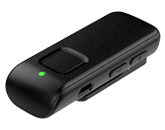 |
| Power Adapter (US/UK/EU/AU) with Female USB Port | 43009-000 |   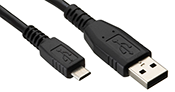 |
| Optional Accessories | ||
| USB Car Charger Adapter (female USB jack) | 91052-000 | 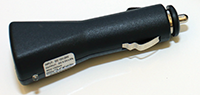 |
| Lanyard | 91324-000 |  |
| Power-In and Audio Line-In Cable | 91259-000 | 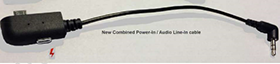 |
StarLink Mini Remote MicrophoneStarLink Mini Remote Microphone
Setup
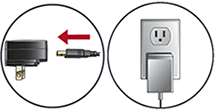
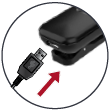
- Attach the USB cable to the power adapter, insert the AC power supply (part# 43009-000) into the wall plug, and insert the microUSB connector into the Mini Remote Mic jack.
How do I reset my Mini Remote Mic?How do I reset my Mini Remote Mic?
- Resetting the Mini Remote Mic is unnecessary, as when hearing aids are paired, all previously paired hearing aids will be deleted from the Mini Remote Mic.
System Behavior
What are my options to Start streaming?What are my options to Start streaming?
- Turn on the Mini Remote Mic with your hearing aids active. Streaming automatically starts in hearing aids.
- Open My Starkey mobile application and tap from the Mini Remote Mic.
- Press the Favorite “star” button on Remote Control. Within Pro Fit, the Favorite “star” button must be assigned the “Accessory Start/Stop” functionality.
- Use hearing aid user control. A specific gesture (e.g., a long press on a push button or double tap) can start streaming if configured via User Controls. Note: Ear to Ear commands are fully supported.
What are my options to Stop streaming?What are my options to Stop streaming?
- Open My Starkey mobile application and tap from the Mini Remote Mic.
- Turn off the Mini Remote Mic.
- Press the Favorite “star” button on Remote Control. Within Pro Fit, the Favorite “star” button must be assigned the “Accessory Start/Stop” functionality.
- Use hearing aid user control. A specific gesture (e.g., a long press on a push button or double tap) can stop streaming if configured via User Controls. Note: Ear to Ear commands are fully supported.
- Walking out of range will interrupt the Mini Remote Mic's audio stream and stop the streaming. When back in range, the Mini Remote Mic audio stream can be manually restarted if desired.
What information does the LED indicator provide?What information does the LED indicator provide?
- The LED indicator provides helpful information about the Mini Remote Mic:
LED Operational State Off
Power is off.
Slow Pulsing Green
Power is on.
Slow Pulsing Red
Low battery condition.
Solid Red
Possible fault condition.
- The Mini Remote Mic is on and actively streaming audio.
How can I increase the audio streaming volume?How can I increase the audio streaming volume?
- Open My Starkey mobile application and increase the Streaming Volume.
- Use hearing aid user control. A specific gesture (e.g., a short or long press on a push button) can increase streaming if configured via User Controls. Note: Ear to Ear commands are fully supported.
- Long press the volume button on the Remote Control.
How can I decrease the audio streaming volume?How can I decrease the audio streaming volume?
- Open My Starkey mobile application and decrease the Streaming Volume.
- Use hearing aid user control. A specific gesture (e.g., a short or long press on a push button) can decrease streaming if configured via User Controls. Note: Ear to Ear commands are fully supported.
- Long press the volume button on the Remote Control.
- Yes, this can only be done via the Remote or hearing aid user control. This cannot be done via the My Starkey mobile application or via the streaming accessory.
- Yes. With your hearing aids active, turn on the Mini Remote Mic.
When does the Mini Remote Mic stream audio?When does the Mini Remote Mic stream audio?
- When it is on, the Mini Remote Mic will always stream audio, including silence, to paired hearing aids.
- No. While the TV Streamer and Remote Microphone + offer line-in audio functionality, the Mini Remote Mic is only a remote microphone.
Hearing Aid Functionality
- Before streaming audio for the first time, your hearing aids must be associated with each unique Mini Remote Mic.
- Yes, pairing can be done inside or outside of Pro Fit.
- See "Pairing with Hearing Aids" in the Mini Remote Microphone User Manual for more information.
- Click pairing information for instructions via Accessories.
- Power off both the hearing aid and CROS transmitter. Power on only the hearing aid, ensuring the CROS transmitter remains powered off during the pairing process.
- About 6”, but closer is even better.
- From My Starkey mobile application, tap Remove this Device on the Edit Accessories screen.
- From Pro Fit, click under the appropriate accessory image via Accessories.
- It is not possible to delete a hearing aid pairing directly from the Mini Remote Mic.
- If the saved Pro Fit session is loaded back into the hearing aids, any hearing aid pairings made after that session will be lost. To recover audio streaming capability, the patient must re-pair a hearing aid with the streaming accessory.
- The Mini Remote Mic can stream to one monaural hearing aid or a binaural set of hearing aids.
- Yes. Select “Hearing aid mic while streaming” in Accessories and choose the preferred hearing aid mic level.
- Yes. The hearing aid mic level can be adjusted in numerous ways:
- Remote Control - Short press or button.
- Hearing aid user control - If configured via User Controls.
- Program change - The hearing aid mic level resets if Reset Levels on Program Change is enabled via User Controls.
- My Starkey mobile application - My settings>Audio streaming>Mic volume during stream.
- Remote Control - Short press
Battery Recharging and Battery Life
- It is best to recharge the Mini Remote Mic before its initial usage. However, it was designed to operate for a few minutes without recharging so that you can quickly demo it for a patient.
How do you charge the Mini Remote Mic?How do you charge the Mini Remote Mic?
- Using its female microUSB jack, the Mini Remote Mic battery can be charged via an AC wall socket, DC power outlet (in a car), USB connection (on a computer or other electronic device), or USB connection (using an instant-charger or external battery pack).
- Yes. The user can charge the Mini Remote Mic while streaming but should not wear it while recharging.
- Typically, the Mini Remote Mic reaches a fully charged state in about 3 hours.
- For a “quick” charge, it reaches a 50% charged state in about 1 hour.
- Up to 10 hours.
- Non-replaceable, rechargeable lithium-ion battery.
- No. There is no program effect, so it can be charged anytime. Charging the battery before it is fully drained will prolong its life. It is better not to fully discharge the battery before charging it.
- No. Charging for extended periods (e.g., overnight or a couple of days) will not harm the battery.
- A charger should provide at least 500mA of current. Most chargers provide at least 1A.
- Minimum requirements for the “instant charger” is to supply 5 volts at >=500 milliamps.
- Yes. However, computer USB ports typically provide only 100-200mA of current (versus 500mA-1000mA for wall outlet power sources). Thus, charging the Mini Remote Mic via a computer USB jack could take longer.
- In a low battery state, the LED slowly blinks red until the Mini Remote Mic shuts down (typically after about 30 minutes) or until a charging power source is applied.
- While in a low battery state, the Mini Remote Mic embeds an audible tone sequence in the audio stream every 5 minutes.
- While the Mini Remote Mic is attached to a power source, the top LED indicator provides battery charge information:
Power Charge State LED Off Recharging Solid Green Off Complete Off On Recharging Solid green briefly interrupted by other LED status behaviors On Complete Off
- Double-click the Power button. If the LED flashes RED-BLUE, then the Mini Remote Mic is ON. If it remains green, then it is OFF.
General
- G Series AI and Genesis AI wireless hearing aids with the most-up-to-date hearing aid firmware.
- The Mini Remote Mic transmits via a proprietary 2.4 GHz audio link.
- No, the Mini Remote Mic does not have separate omni and directional modes. It uses proximity to sound source plus a noise reduction algorithm to provide the assistive listening benefit.
- Hearing aids can be paired with up to five streaming accessories.
- Optimal operating range with hearing aids is up to 60 feet (~20 meters).
- * Environmental factors, such as obstructions, interference, and human body positioning, may reduce operational range. Larger operational distances are achievable, though audio quality and connectivity will decrease.
- Yes. On the Edit Accessories screen, tap the name and type in a unique Mini Remote Mic name.
Is the Mini Remote Mic waterproof?Is the Mini Remote Mic waterproof?
- No. Exposure to water or excessive moisture may damage the Mini Remote Mic. If the Mini Remote Mic is accidentally exposed to water or moisture, then:
- Power it down
- Wipe it dry with a soft, absorbent cloth
- Let it completely dry out before turning it back on
- If a Mini Remote Mic is dropped, it will automatically mute its audio stream until it has stopped moving for ~2 seconds. This minimizes loud impact sounds.
- Power off and power back on again.
- No. It was designed with buttons that are difficult to activate accidentally.
| Accessory | Part Number | Image |
| Standard Accessories | ||
| Mini Remote Microphone | 43023-000 |
(includes 4 global plugs) |
| Mini Remote Microphone | 43023-610 |
(includes only a US plug) |
| Power Adapter (US/UK/EU/AU) with Female USB Port | 43009-000 | |
| Optional Accessories | ||
| USB Car Charger Adapter (female USB jack) | 91052-000 | |
| Lanyard | 91324-000 | |