Wireless Programming
The ability to program the hearing aids without cables makes fitting more convenient, more comfortable, and less time consuming for both you and the patient. The Noahlink Wireless 2 and Noahlink Wireless Programmers provide a robust communication link between wireless hearing aids with 2.4 GHz technology and Pro Fit.
Wireless Programming assists with reestablishing connection with the hearing aids if the connection is lost during a fitting, helps locate the desired hearing aid by activating the user control on the device if multiple unassigned hearing aids are detected, provides details regarding the wireless settings conflict dialog box, and aids in ending a wireless fitting session.
Wireless Connection ProblemsWireless Connection Problems
If the connection is lost during the fitting, Pro Fit automatically attempts to reestablish the connection with the hearing aid(s) for 15 seconds. If this is unsuccessful, a message indicating the specific side(s) that went out of range with instructions to reestablish a connection.
- Open and close the battery door, reboot, or return the hearing aid(s) within range of the Noahlink Wireless 2 or Noahlink Wireless Programmer.
- Click OK.

Note: Depending on the screen currently accessed when the connection was lost determines whether or not the message box displays. If the message box displays, the process (e.g., Feedback Canceller, etc.) must be canceled before clicking OK. Once the connection is reestablished, the process (e.g., Feedback Canceller, etc.) must be restarted. If the message box doesn't display and the connection isn't reestablished, the process (e.g., Acoustics, Swap Fit, etc.) must be canceled. Tip: Click Cancel to cancel reestablishing connection and disconnect the hearing aid(s). - If the connection was reestablished, a message displays indicating the specific side(s) was reconnected. Click OK.
Note: If the connection was not reestablished, a message displays indicating the hearing aid(s) was not found. Repeat steps 1-2.
Wireless Hearing Aid LocatorWireless Hearing Aid Locator
If multiple unassigned hearing aids are detected but you're unsure which information corresponds to the devices you want to program, the device locator feature helps find the desired device by activating the user control on the hearing aid.
- 'Short Press' or 'Push & Hold' the user control on the desired device to locate and a colored frame flashes around the hearing aid card.
Note: If 'Push & Hold' is configured for "Sleep Mode", this function is unavailable. 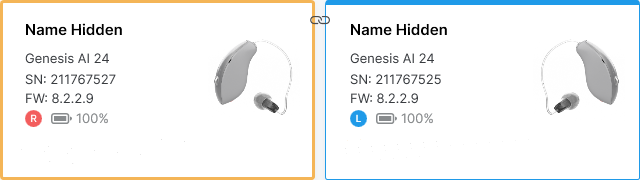
Wireless Settings ConflictWireless Settings Conflict
For wireless communication to work, both the right and left hearing aids must have matching wireless capabilities and the same configuration for Programs/Indicators, Volume Control, Balance Control, Tinnitus Level, Sleep Mode (rechargeable products only), Accessories, and/or Audio Streaming functionality. If there are differences between the two hearing aids, a dialog box appears asking you to select which device has the desired functionality for your fitting. Once the source hearing aid is selected, Pro Fit automatically changes the settings in the other hearing aid to match those of the hearing aid chosen, allowing wireless communication to function. However, if the source aid contains a specific telephone program (e.g., Autocoil, Telecoil, etc.), the destination aid may not be changed to the same telephone program but rather a compatible program (e.g., Offset).
End Wireless FittingEnd Wireless Fitting
Once the wireless fitting session is complete, the physical user controls can be re-enabled to test the hearing aids without exiting Pro Fit.
- Click
 on the Left Navigation Bar to end the wireless fitting session and re-enable user controls.
Note: The Save Session screen displays if a session is currently in progress that hasn't been saved. Session Notes hyperlinks display based on the session's completeness. If topics were entered but adjustments weren’t assigned, no topics and notes were entered, or unresolved topics from the previous visit remain, a hyperlink to visit Session Notes appears. Clicking it cancels the save. If topics were entered and adjustments were assigned or no adjustments were needed, and all prior topics were resolved, the options to export the session notes or copy them to the clipboard appear. Click Yes to save the session, click No to not save the session, or click Cancel to cancel ending the session. If custom programs were adjusted during the session, this data would not be saved to the My Starkey mobile application if No is selected.