Inspire Updater

Inspire Updater searches and retrieves full versions or updates to Inspire whenever they become available so Inspire is always up to date with the latest products and improvements. Inspire Updater can be scheduled to execute automatically and process the download and installation without any user intervention. A live Internet connection is required to access. See Inspire Updater - User Preferences below for more information.

  1. Click Help from the Menu Bar.
  2. Point to Inspire if Noah 3 is installed.
  3. Click Check for Updates and a dialog listing all of the available updates appears, if available.
    Note:  This feature is only available if Allow Inspire Updater to keep Inspire up to date is selected via Information Preferences. If selected, a pop-up appears automatically on the system tray when updates are available to download.
    Tip:  Double click on the Inspire Updater icon Inspire Updater is ready on the system tray and click Check for Updates or right click on the Inspire Updater icon Inspire Updater is ready on the system tray and click Check for Updates.
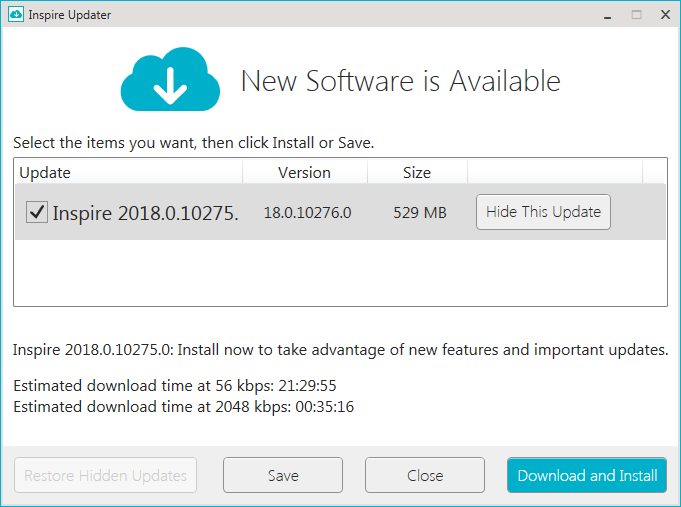
    Note:  If there are no updates available, click Close.
  4. Click the checkbox to the left of the desired updates to install.
    Tip:  To disregard a specific update indefinitely, click on the update, and click Hide this Update. To view a list of updates that were hidden previously and never installed but are still applicable, click Restore Hidden Updates. This button is only enabled if updates were hidden previously.


    Check for Updates
  5. Click Download and Install to download the selected updates and a progress bar indicates the overall status of completion.
    Tip:  Click Save to save the download to a file. Identify the path including drive and folder and click OK.
    Tip:  Click Close to cancel the update.
    Tip:  To cancel the download once it's in progress, click Cancel and a dialog box appears asking you to confirm the cancellation. Click Yes to cancel the download or click No to continue with the download.
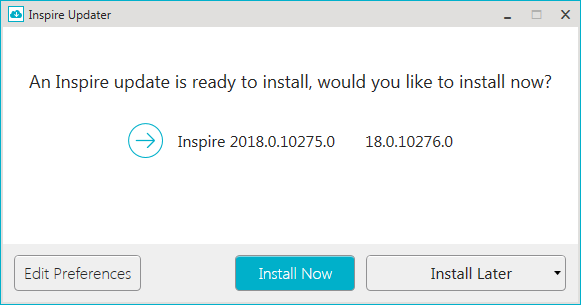
  6. Once the download is complete, click Install Now to install the updates.
    Tip: To delay the installation or delete the update/re-download, click Install Later and select the desired option. If Delete this update or Delete this update and re-download was selected, a dialog box appears asking you to confirm the deletion. Click Yes to delete the file/re-download or click No to not delete the file and return to the previous screen. 'Delete this update and re-download' should only be selected if the previous download and install failed. To edit user preferences, click Edit Preferences.


  7. Accept the terms of the license agreement and click Next.
  8. Check or uncheck the components to install or not install and click Install.
  9. Once the install is complete, click Finish.


Inspire Updater - User Preferences

Inspire Updater - User Preferences identifies how often the updater should check for updates, indicates if the updates should download and install automatically, and selects the language.

  1. Double click on the Inspire Updater icon Inspire Updater is ready on the system tray and click Edit Preferences or right click on the Inspire Updater icon Inspire Updater is ready on the system tray and click Edit Preferences.
  2. Enter or edit user preferencesuser preferences.
    Field Name Description Details
    Check for updates (day) Selects if Inspire Updater should check for updates every day, on a specific day of the week, or never. If Never is selected, all remaining Automatic Updates Scheduling fields are disabled.
    Check for updates (time) Selects if Inspire Updater should check for updates when the computer is turned on or at a specific time of day. The options are Startup and all Hours of the day in 60 minute increments. This field is only available if Every Day or A Specific Day of the week is selected for the scheduling day.
    Automatically Download Updates Denotes whether or not Inspire Updater should automatically download all available updates. If selected, the Inspire Updater screen is bypassed and all available updates are automatically downloaded. This checkbox is only available if Every Day or A Specific Day of the week is selected for the scheduling day.
    Automatically Install Updates Denotes whether or not Inspire Updater should automatically install all available updates. If selected, the Inspire Updater screen is bypassed and all updates that were downloaded are automatically installed. This checkbox is only available if Every Day or A Specific Day of the Week is selected for the scheduling day.
    Language Selects the language for the User Preferences screen. If the language is changed, it won't take effect until the next time Inspire Updater starts.
    Hidden Updates Restores updates that were hidden previously and never installed. To view a list of updates that were hidden previously and never installed but are still applicable, click Restore Hidden Updates. This button is only enabled if updates were hidden previously.
  3. Click OK to save the preferences and close the screen.
    Note:  If the language was changed, a message displays that it won't take effect until the next time Inspire Updater starts. Click OK. Right click on the Inspire Updater icon Inspire Updater is ready on the system tray and click Exit. Right click on , click Starkey Laboratories>Inspire Updater, or click Start>All Programs>Starkey Laboratories>Inspire Updater to reaccess. Right click on the Inspire Updater icon Inspire Updater is ready on the system tray and click Edit Preferences to display in the selected language.