Drag and Drop Graphical Adjustments
An entire curve, multiple frequencies, or a single frequency can be
adjusted graphically by dragging and dropping points on the frequency
response curve. Points on the graphical response curves are indicated
by an empty circle  or black
oval
or black
oval  ,
called a grab handle. The number of grab handles available are based
on the number of channels and/or
bands available in the hearing aid. Whenever a grab handle
is selected, a shaded region will appear indicating the adjustment range
for that particular control or controls. Graphical adjustments can only
be made via QuickFit,
Band,
Channel,
Maximum Output, Compression,
Verify Comfort, or Fine Tuning
and via any graphical view except Multicurve.
,
called a grab handle. The number of grab handles available are based
on the number of channels and/or
bands available in the hearing aid. Whenever a grab handle
is selected, a shaded region will appear indicating the adjustment range
for that particular control or controls. Graphical adjustments can only
be made via QuickFit,
Band,
Channel,
Maximum Output, Compression,
Verify Comfort, or Fine Tuning
and via any graphical view except Multicurve.
- Connect and select the desired hearing aid(s) to
adjust via Get Started.
- Click QuickFit,
Band,
Channel,
Maximum
Output,
Compression,
or Fine Tuning.

| Note:
Xino Classic,
Zōn, and Destiny
products cannot be adjusted via QuickFit or Compression
and based on the screen accessed (Band, Channel, or Maximum
Output) determines the curve(s) that can be adjusted. |
- To adjust a single frequency, click on the desired
grab handle. To adjust a sequential group of frequencies, click on
the beginning grab handle, press and hold Shift and click on the ending
grab handle and all grab handles between the two clicks will be selected.
To adjust a non-sequential group of frequencies, press and hold Ctrl
and click on the desired grab handles. To adjust an entire curve,
click on the response curve directly and all grab handles will be
selected.
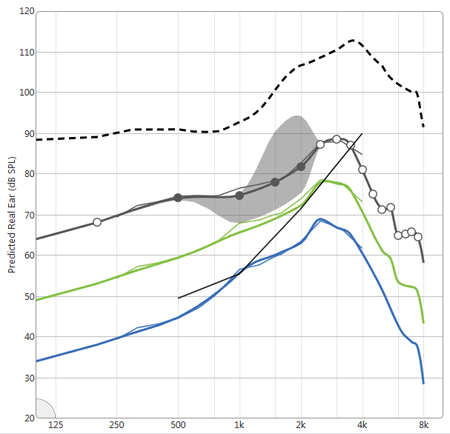
Note: Selected
grab handles are indicated by a solid circle  or
orange oval or
orange oval
 and the range of potential adjustments
are shown by a shaded region around the grab handles.
For Xino Classic,
Zōn, and Destiny
products, the corresponding slider bar will also have an orange
box around it, indicating that it is the currently selected
point or points. and the range of potential adjustments
are shown by a shaded region around the grab handles.
For Xino Classic,
Zōn, and Destiny
products, the corresponding slider bar will also have an orange
box around it, indicating that it is the currently selected
point or points. |
- Drag any selected grab handle to the desired position
and release and all highlighted points will move together, if applicable.
The response of the hearing aid snaps to the closest possible settings.
| Tip: Press
the Up or Down arrow keys or the Page Up or Page Down
keys to drag the grab handles. |
- Click anywhere on the graph to release the grab
handles from their highlighted state to make a different adjustment
if desired.


 created in the Thrive Hearing Control app for


 .
.