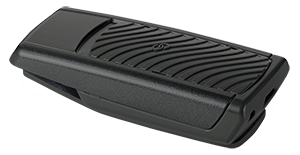
SurfLink Remote Control - Adjusts volume, memory, mutes/unmutes the hearing aids, and starts/stops audio streaming from the SurfLink Media remotely.
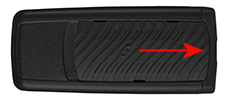
The SurfLink Remote Control is available in two levels: Advanced and Basic. If the patient desires a different level in the future, the faceplate can be easily changed with the removal tool. See Removing the Faceplate for instructions on switching the SurfLink Remote faceplate.
Advanced - Adjusts volume, memory, mutes/unmutes the hearing aids, returns the hearing aids to the Home setting (Memory 1 and their programmed volume control setting), and configures the Favorite button to perform a specific function. This level is the default and is best suited for use with the SurfLink Media.
Basic - Adjusts volume and returns the hearing aids to the Home setting (their programmed volume control setting).
Below is a picture of the SurfLink Remote Controls and descriptions of the buttons. See the SurfLink Remote Control Operations Manual for instructions on operating the specific SurfLink Remote Control or view instructional videos via Instructional Videos for the Professional. For assistance with solving SurfLink Remote Control issues, see Troubleshooting.
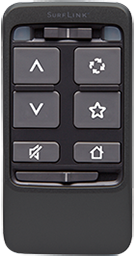
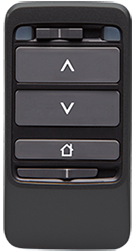
Advanced Basic
| SurfLink Remote Control Button | Description |
|
Selects if the left, both, or right hearing aid will be adjusted. To adjust the left hearing aid only, slide the switch to the left and the blue light illuminates. To adjust both hearing aids, slide the switch to the middle (as shown). To adjust the right hearing aid only, slide the switch to the right and the red light illuminates. |
|
Increases the volume on the hearing aids and/or SurfLink Media. For CROS/BiCROS products, regardless of the slider switch position, the volume will be increased on both the receiver aid and transmitter. |
|
Decreases the volume on the hearing aids and/or SurfLink Media. For CROS/BiCROS products, regardless of the slider switch position, the volume will be decreased on both the receiver aid and transmitter. |
|
Mutes and unmutes the hearing aids. Pressing any other button will also unmute the hearing aids and perform the function of the button. This feature is not available on the Basic Remote Control. For CROS/BiCROS products, if the slider switch is in the middle, all microphones on both the receiver aid and transmitter and audio streaming to the receiver aid will be muted. If the slider switch is on the receiver side, all microphones on the receiver aid and audio streaming to the receiver aid will be muted. If the slider switch is on the transmitter side, all microphones on the transmitter and audio streaming to the receiver aid will be muted. |
|
Cycles through the available memories. This feature is not available on the Basic Remote Control. |
|
Performs the programmed function (e.g., stop/start audio streaming, control noise, etc.). If Stop/Start Audio Stream is selected and SurfLink Media is also enabled with Automatic Streaming selected, this button stops audio streaming. Pressing the button again restarts audio streaming. If Stop/Start Audio Stream is selected and SurfLink Media is also enabled with Remote Control Streaming selected, this button starts audio streaming. Pressing the button again stops audio streaming. This feature is only available on the Advanced Remote Control. |
|
Returns the hearing aids to Memory 1 at their power-on volume level. |
|
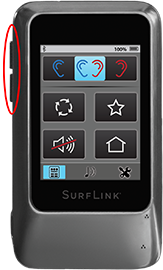
Locks and unlocks the remote control. To lock the remote control to prevent adjustments from occurring if a button is pressed inadvertently, slide the switch to the right to expose orange. To unlock the remote control, slide the switch to the left (as shown). |




In addition, the SurfLink Remote Control can be set to operate in two different modes: Multicast and Broadcast. Multicast mode can control up to four hearing aids that were synced with the remote control. Broadcast mode can control any hearing aids that were remote control enabled but have not been synced with a specific remote control. All SurfLink Remote Controls default to Multicast mode when shipped and if the hearing aids and remote control were ordered together, they're automatically synced together. The mode can be changed at any time by removing the faceplate and moving the switch to the desired mode. Position 1 represents Multicast and position ∞ represents Broadcast.
The operating range from the remote control to the hearing aids should be within 1.07 meters or 42 inches. This range allows the patient to operate the remote control from pockets, purses, etc.
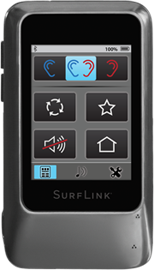
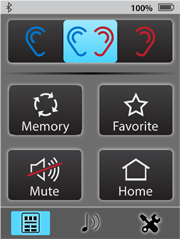











 to view an image of the
address) if configuring Multicast mode and click
 and/or
 icons display to indicate which hearing aids
are paired with the remote control. To unsync hearing aids
from the SurfLink Remote Control, click
