 icons display in
the upper left hand corner on most fitting graphs.
Tinnitus generates a white noise stimulus and allows you to make discrete, frequency-specific Band adjustments per memory. Band changes adjust the specific output settings. The level of the Tinnitus Stimulus can be controlled via User Controls. Adjustments can be made to each individual band, to groups of bands labeled low frequencies, mid frequencies or high frequencies, or to all bands simultaneously. The rate of modulation, which changes the frequency and amplitude (level) of the signal over time, can be selected. This feature allows you to select how quickly these changes take place. Tinnitus is available in the Honor, Pride, Pride IIC, Z Series, and Xino Tinnitus products.
If Best Fit All Memories is applied during an adult fitting, Enable
Tinnitus Stimulus is automatically unchecked for all memories except
Relax. If Best Fit All Memories is applied during a pediatric fitting,
Enable Tinnitus Stimulus is automatically
unchecked for all memories. To configure a memory with Tinnitus Stimulus
only functionality, the Mute
memory environment must be selected, and Enable
Tinnitus Stimulus must be checked for that memory. The Tinnitus
Stimulus will be heard in that memory even though hearing aid amplification
will be muted. If Tinnitus is enabled for a specific memory, the
spectrum of the stimulus is represented in purple
on the fitting graphs on the Tinnitus screen and icons display in
the upper left hand corner on most fitting graphs.
The default Tinnitus Stimulus output settings are based on the patient's audiogram. If a valid audiogram exists, the default output settings when Tinnitus Stimulus is enabled or reset via Best Fit or the Target Match Tinnitus button, are a broadband noise with all 16 bands at the same acoustic level (flat response). If a valid audiogram has not been entered for the patient, the default output settings are a broadband noise in which the level of the Tinnitus Stimulus is set to 25% of the available range in each band. If adjustments are made, the output settings can be set back to their original defaults at any time via the Target Match Tinnitus button.
If Tinnitus Stimulus is enabled for any memory and a rate of modulation other than Off is selected, and SoundPoint Tinnitus is accessed, the modulation is temporarily disabled in all applicable memories while in this screen. Disabling this feature ensures that the changes the patient is hearing are from SoundPoint Tinnitus, not from modulation. Once SoundPoint Tinnitus is exited, the rate of modulation is re-enabled in all applicable memories. In addition, if Tinnitus Stimulus is enabled for any memory and Speech Mapping is accessed, Tinnitus Stimulus is temporarily disabled in all applicable memories while in this screen. Once Speech Mapping is exited, Tinnitus Stimulus is re-enabled in all applicable memories.
The Tinnitus screen displays the current numerical output values per ear side for specific frequency ranges or individual bands depending on the state of each frequency range control (expanded or collapsed). Adjustments to the selected cells can be made via up and down arrows. Access to SoundPoint Tinnitus is also available via this screen.
If Tinnitus Stimulus is enabled for any memory but the tinnitus level
user control is disabled via User Controls, or if Tinnitus
Stimulus is disabled for all memories but the tinnitus level user control
is enabled via User Controls, an alert  displays to
the right of Fitting
on the Left Navigation Menu. Point to
and click Navigate to User Controls or Navigate to Tinnitus, respectively to resolve
the conflict.
Configuring tinnitus based on the patient's unique experiences can be achieved by understanding his/her difficulties with tinnitus. The Tinnitus Handicap Inventory assessment assists in identifying the patient's frustrations and severity of tinnitus.
Connect and select the desired hearing aid(s) to configure Tinnitus via Get Started.
Click on the Read Device Settings or Load a Previous Session radio
button and then click  .
Click Tinnitus.
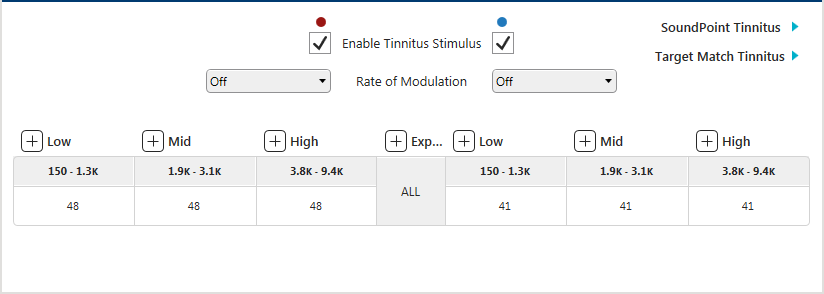
| Note: Only the average numerical output values per frequency range displays. The column headings indicate the frequency range for that group when collapsed. The frequency range of adjustment displays in a tool tip by pointing to the column heading. |
Tip: If
more space is needed to view the tables, click  at the bottom of
Left Navigation Menu to hide the menu. Click  to redisplay the menu. |
Click  for the specific
frequency range (Low, Mid, or High) or Expand All to display
the numerical output values for all available bands within the frequency
range or all bands respectively.

| Note: The numerical table values always reference 2cc Coupler Output, which may differ from the graphical view currently selected. Only output graphs, including 2cc Coupler Output and Real Ear Response, can be selected to display. If 2cc Coupler Gain was selected prior to accessing Tinnitus, Inspire automatically changes the display to 2cc Coupler Output. If Predicted Insertion Gain was selected prior to accessing Tinnitus, Inspire automatically changes the display to Predicted Real Ear Response. Audiometric thresholds are never displayed even if Display Thresholds and UCLs is selected via General Preferences. |
Tip: Click
 for the specific frequency range (Low,
Mid, or High) or Collapse All to hide the numerical values. |
Click on the specific memory to adjust if applicable or click  to adjust all memories simultaneously.
| Note: If a memory is changed or Best Fit Current Memory is applied during any fitting, the state of Enable Tinnitus Stimulus is based on the new memory selected. If a memory is changed to Disabled or any Telephone memory, or Stream Boost is selected, Enable Tinnitus Stimulus is disabled because tinnitus is not supported in these memories. If a memory is changed to Relax during an adult fitting, Enable Tinnitus Stimulus is automatically checked. If a memory is changed to any environment except Relax, Enable Tinnitus Stimulus is automatically unchecked. If a memory is changed during a pediatric fitting, Enable Tinnitus Stimulus is automatically unchecked regardless of the memory selected. |
Inspire automatically defaults to a binaural  view if applicable.
To adjust only the right or left hearing aid, click
 or
 .
| Note: If fitting CROS/BiCROS devices, only the receiver aid can be adjusted, therefore, the side cannot be selected. |
Check or uncheck Enable Tinnitus Stimulus to enable or disable tinnitus stimulus.
| Note: If Enable Tinnitus Stimulus is unchecked, no tinnitus adjustments can be made. If tinnitus adjustments were made previously for a specific memory and Enable Tinnitus Stimulus is unchecked, all settings are retained if Enable Tinnitus Stimulus is rechecked. |
Select the Rate of Modulation from the drop down list.
| Note: The rates available are Off, Slow, Medium, and Fast. The initial default is Off, however, if a memory is changed, the default rate is based on the rate currently selected for Normal memory. For example, if Medium is currently selected for Normal memory and a memory is changed to a supported memory (e.g., Outdoors, Music, etc.), Medium automatically defaults for the new memory. In addition, all current output level settings for Normal memory are automatically copied to the new memory. |
Click on the frequency or group of frequencies to adjust.
| Tip: To select a sequential group of frequencies, click on the beginning column header or frequency cell, press and hold Shift and click on the ending column header or frequency cell and all columns or frequencies between the two clicks will be selected, or press and hold the left mouse button and drag to the left or right until the desired group of frequencies are selected and then release the left mouse button. To select a non-sequential group of frequencies within a row, press and hold Ctrl and click on the desired frequencies. To select all frequencies, click All. Selected frequencies are represented in dark purple on the fitting graph and blue on the table. |
Click  or
 within the table to increase or decrease the output binaurally or
for the ear side selected.
| Note: The adjustment arrow keys only display when the mouse hovers over the selected frequencies. |
| Tip: To reset the current memory's or all linked memories' output settings back to their original defaults, which are based on the patient's audiogram, click Target Match Tinnitus. |
Click SoundPoint Tinnitus to fine tune the tinnitus stimulus if applicable.
| Note: SoundPoint Tinnitus is only enabled if Enable Tinnitus Stimulus is checked for one or both ear sides. |
