Fine Tuning Honor,
Pride, Halo, Z Series,
3 Series, Pride IIC, Xino
Wireless, and Xino Tinnitus
Products
Fine Tuning makes discrete, frequency-specific adjustments to Channel
and Maximum Output. Channel changes the specific gain and compression
settings and Maximum Output modifies the maximum output. The amount of
reserve gain available for the user volume can be controlled via User
Controls. Adjustments can be made to each individual channel, to groups
of channels labeled low/bass
frequencies, mid frequencies, high/treble
frequencies, or ultra frequencies,
or to all channels simultaneously.
Adjustments can be made via two views. The Tables
view displays current numerical gain values
per ear side for specific frequency ranges or individual channels depending
on the state of each frequency range control (expanded or collapsed).
Adjustments to the selected cells can be made via up and down arrows.
The option to display either Max Output (MPO) or Compression Ratio (CR)
rows and associated values can be selected. The Sliders
view displays the average numerical gain values per ear side for each
channel. MPO Boost, which is
a feature in Honor, Pride, and Pride IIC
products, provides additional output for severe-to-profound hearing loss
listeners. Adjustments per input range (All, Loud, Moderate,
or Soft) or maximum output (MPO) can be made via slider bars. In addition,
all adjustments, except Music,
can be made graphically.
Connect and select the desired hearing aid(s)
to fine tune via .
Click on the Read Device Settings or radio
button and then click  .
.
Click Fine Tuning.
Tip: Click
 via QuickFit to access. via QuickFit to access. |
Click on the specific memory to adjust if applicable or click  to adjust all memories simultaneously.
| Note: For
the Music memory in Honor, Pride, and Pride IIC
products, compression settings and maximum output
cannot be adjusted and adjustments cannot be made via
the Sliders view. In addition, adjustments can only be made
to loud and soft music and within a range of -10 to +10. |
Make adjustments via Tables
or Sliders.
| Note: The
Tables view automatically defaults. If the Sliders view was
last selected, this view automatically defaults the next time
Fine Tuning is accessed for similar products in a new session. |
Fine
Tuning via Tables
Click  if not currently displayed.

| Note: Only
the average numerical gain values per frequency range displays.
The column headings indicate the frequency range for that
group when collapsed. The frequency range of adjustment displays
in a tool tip by pointing to the column heading. |
| |
Tip: If more
space is needed to view the tables, click  at the bottom of to hide
the menu. Click
at the bottom of to hide
the menu. Click  to redisplay the menu. to redisplay the menu. |
Click  for the specific
frequency range (Low/Bass,
Mid, High/Treble, or
Ultra) or Expand All to display the numerical
gain values for all available channels within the frequency range
or all channels respectively.
for the specific
frequency range (Low/Bass,
Mid, High/Treble, or
Ultra) or Expand All to display the numerical
gain values for all available channels within the frequency range
or all channels respectively.
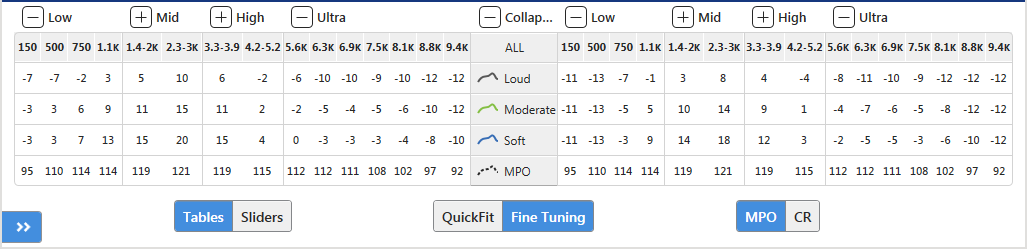
Note: The
numerical table values for Loud, Moderate, and Soft always
reference 2cc Coupler Gain
and MPO always references Real
Ear Response, which may differ from the currently selected. The numerical
value for the current graphical view
and 2cc Coupler Gain displays in a tool tip
by pointing to any empty circle point  on the graphical response curves.
 |
| |
Tip: Click
 for the specific frequency range (Low/Bass,
Mid, High/Treble, or
Ultra) or Collapse All to hide the numerical
values. for the specific frequency range (Low/Bass,
Mid, High/Treble, or
Ultra) or Collapse All to hide the numerical
values. |
Click  to hide maximum output
and display Compression Ratio rows between inputs and their associated
values per available frequency range or individual channels if desired.
to hide maximum output
and display Compression Ratio rows between inputs and their associated
values per available frequency range or individual channels if desired.
| Note: Compression
Ratio can be adjusted indirectly by modifying the gain adjustments
for loud, moderate, and soft inputs. Independent Speech Optimization
allows for exclusive CR adjustments between 1.0 and 3.0. The
shaded region on the response graph displays the independent
adjustment area (CR between 1.0 and 3.0). If adjusting outside
the shaded region, all curves are adjusted (CR greater than
3.0). |
| |
Tip: Click
 to hide Compression Ratio rows and redisplay
Maximum Output. to hide Compression Ratio rows and redisplay
Maximum Output. |
Click on the frequency/output or group of frequencies/inputs/outputs
to adjust.
| Tip: To select
a sequential group of frequencies, click on the beginning
column header or frequency cell, press and hold Shift and
click on the ending column header or frequency cell and all
columns or frequencies between the two clicks will be selected,
or press and hold the left mouse button and drag to the left
or right until the desired group of frequencies are selected
and then release the left mouse button. To select a non-sequential
group of frequencies within a row, press and hold Ctrl and
click on the desired frequencies. To select all frequencies
and inputs, click All. To
select a specific input range or maximum output, click the
row header (Loud, Moderate, Soft, or MPO). Selected frequencies
are represented in blue
on the table, however,
if MPO Boost
is selected via the Sliders view, all MPO frequency cells
that are maximized are highlighted in orange. |
Click  or
or  within the table to increase or decrease the gain or output binaurally or
for the ear side selected.
within the table to increase or decrease the gain or output binaurally or
for the ear side selected.
| Note: The
adjustment arrow keys only display when the mouse hovers over
the selected frequencies. |
| |
| Tip: Adjustments
can also be made graphically by
points on the frequency response curve.
If Display Max Output Line on all
SPL Graphs
is not selected via ,
MPO cannot be adjusted graphically. |
Fine
Tuning via Sliders
Click  .
.
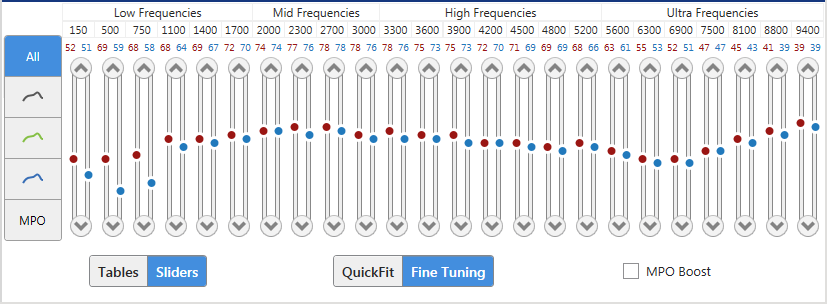
Click on the specific input range (All, Loud
 ,
Moderate
,
Moderate  ,
or Soft
,
or Soft  )
or maximum output (MPO) to adjust.
)
or maximum output (MPO) to adjust.
| Note: The
average numerical gain values per ear side for each frequency
displays based on the input/output selected. Selected inputs/output
are represented in bold
(gray,
green,
blue,
or black)
on the fitting graph and blue to the left
of the sliders. |
Drag the slider bars 
 to increase or decrease the gain
or output per ear side or click
to increase or decrease the gain
or output per ear side or click  or
or  to increase or decrease binaurally.
| Tip: Adjustments
can also be made graphically by points on the frequency response curve.
If Display Max Output Line on all
SPL Graphs
is not selected via ,
MPO cannot be adjusted graphically. |
To
increase all MPO channels to their extended maximum, click MPO
and then check MPO Boost.
| Note: This
checkbox is only available for Honor, Pride, and Pride IIC
products and may result in a louder and more preferable fitting
for certain listeners with severe-to-profound hearing loss,
or a need for more ‘loudness’ with their current fitting.
If checked, all channels are automatically maximized and the
maximum output values are highlighted in orange.
However, any channel can be decreased if desired. If any option is selected while MPO Boost is enabled, MPO Boost is automatically
unchecked and the maximum output settings are reset to the
recommended values. |

 view if applicable.
To adjust only the right or left hearing aid, click
view if applicable.
To adjust only the right or left hearing aid, click  or
or  .
.