Connection Status
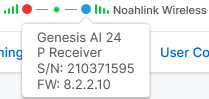
Connection status icons for the hearing aids and programmer display on the top toolbar during a live fitting. As the hearing aids are programmed, the connection status icons change to reflect their current state. Details regarding the hearing aid or programmer are displayed in a tooltip by pointing to any connection status icon.
| Programmer Connection Status Icon | Description |
|
|
Indicates that the selected programmer is currently being used in a fitting. |
|
|
Indicates that the selected programmer currently being used in a fitting is disconnected. |
|
Hearing Aid Connection Status Icon |
|
|
|
Indicates that a different hearing aid is now connected to the wired programmer currently being used in the fitting. To program this hearing aid, the fitting session must be ended, and a new one must be started. |
|
|
Indicates that a hearing aid is currently being used in a fitting. |
 |
Indicates that a hearing aid currently being used in a fitting is disconnected. |
 |
Indicates that the disconnected hearing aid is unable to reestablish the connection. |
 |
Indicates a monaural fitting and that the opposite hearing aid is currently not being used or is detected. |
|
|
Indicates that a hearing aid is currently being programmed, read, or Speech Mapping is active. The background of the icon appears to be moving. |
|
Tooltip |
|
|
|
When you point to the connection status icon, a tooltip displays the programmer and serial number (if applicable) of the currently connected programmer. |
|
|
When you point to the connection status icon, a tooltip displays the product, receiver/matrix, cable length, serial number, and firmware version of the currently connected hearing aid. |



Watermarks
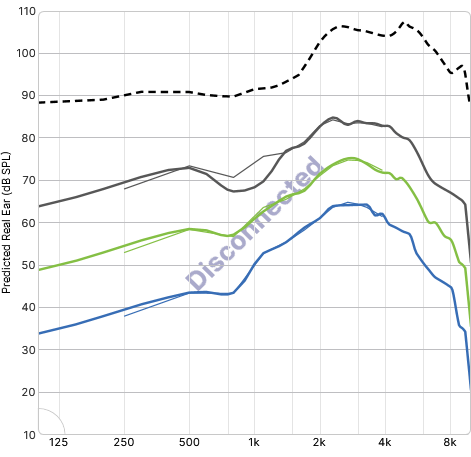
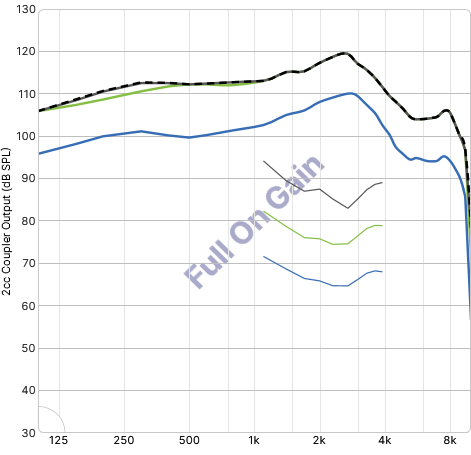
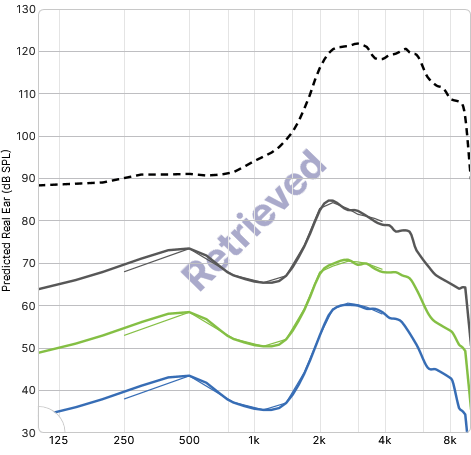
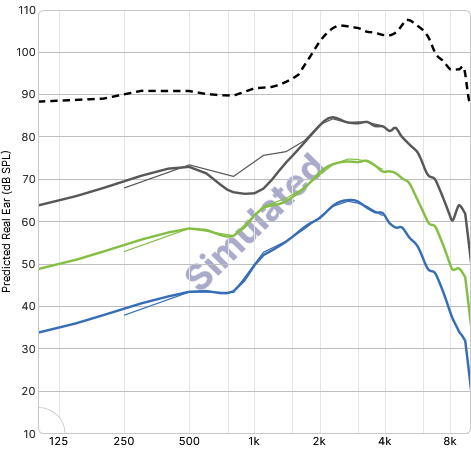
Pro Fit also uses a series of watermarks to indicate connection or hearing aid. The watermarks appear across the frequency response curves. There are four main watermarks: Disconnected, Full on Gain, Retrieved, and Simulated. Additional watermarks are displayed and noted in the feature's instructions where applicable.
| Watermark | Description |
|
Disconnected Watermark |
Indicates the hearing aid or programmer used within the current session has disconnected. |
|
Full On Gain Watermark |
Indicates the hearing aid connected or disconnected is currently set with full on gain settings. |
|
Retrieved Watermark |
Indicates the currently displayed responses have been retrieved from the database, but the hearing aid is not connected. |
|
Simulated Watermark |
Indicates a hearing aid is being simulated. |