Speaker Calibration
Calibration of the Surround Sound (5.1 and higher) speaker array or
stereo speakers is strongly recommended to achieve optimal results with
Media
Player. Calibration can be performed either with a Sound Level Meter
(SLM) or directly through any hearing aid that is compatible with Inspire.
For products that support real-time input monitoring, a hearing aid can
be used. For products that don't support real-time input monitoring, a
Sound Level Meter must be used. Speakers must be calibrated prior to using
Media Player.
Before beginning calibration, you should verify the speaker set-up on
your PC. The following instructions are for Windows® 10, 8 and 7.
- Right click on
 or click Start.
- Click Control Panel.
- For Windows 8 and 7, click Hardware
and Sound.
- Click Sound.
- Click on the speakers.
- Click Configure and the
current speaker configuration displays.
- Inspire supports Desktop Stereo Speakers and Surround
Sound Speakers (5.1 and higher) settings. Please make sure you have
the correct option selected.
- Click Test to test the
speakers if desired.
- Click Next.
- Select full-range speakers if applicable.
- Click Next.
- Click Finish to complete
the configuration.
- Close any open Windows screens and launch Inspire.
- Click Tools
from the Menu Bar.
- Click Speaker Calibration
and a dialog box displays that's specific to the type of sound card
selected to use.

| Note: If
the speakers configured in Windows aren't Desktop Stereo
Speakers or Surround Sound Speakers (5.1 and higher),
a message that the calibration cannot be performed displays.
Click OK. |
- If calibrating via a hearing aid, connect and select
a right hearing aid. If the aid is a Directional device, make sure
it is in Omni mode.
- Place the hearing aid or Sound Level Meter in the
exact center of the speaker array at that same height as the speakers
according to the dimensions specified in the diagram below.
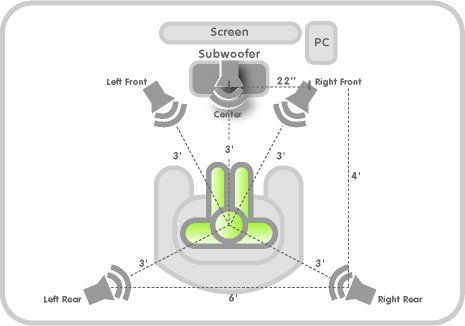
- Calibrate the system based on the PC's speaker configuration.
Calibrating Surround
Sound Speakers (5.1 and Higher) via Hearing AidCalibrating Surround
Sound Speakers (5.1 and Higher) via Hearing Aid
- Launch the 5.1 or higher sound card software
and make sure that the controls are set to the 70% position for
each speaker.
- Turn on the speakers connected to the PC and
start with the external volume control at 1/4 position.
| Note: The
master volume control in your PC will be set to the maximum
position once calibration begins. |
- Make sure the room noise is kept to a minimum
level.
- Click Start Calibration
and a message displays indicating the master and wave volume controls
will be set to 100%.
| Tip: Click
Cancel to cancel
the calibration. If selected, a dialog box
appears asking you to confirm the cancellation. Click
OK to cancel the calibration
or click Cancel to continue
with the calibration process. |
- Click OK and the
calibration begins.
| Note: When
a speaker is being calibrated, it's represented in
green. |
| Tip: The
Start Calibration button
changes to Pause. Click
Pause to pause the calibration.
Click Resume to resume
the calibration. |
| Tip: Click
Cancel to cancel
the calibration. |
- While the calibration signal is playing from
the current speaker, adjust the external volume control until
the meter reaches the indicator line.
| Note: The
thermometer control range is 60-90 dB. If the thermometer
bar is red,
an unacceptable low or high dB level has been reached.
If the thermometer bar is green,
an acceptable target dB level (69-71 dB) has been reached. |
- Click OK when the
correct level is reached for the current speaker.
- While the calibration signal is playing from
the current speaker, adjust the 5.1 or higher sound card software
control for the current channel until the meter reaches the indicator
line if necessary.
| Note: If
the target level can't be reached using the software
control, adjust the external volume control until
the meter matches the indicator line. |
- Click OK when the
correct level is reached for the current speaker and a dialog
box appears asking which volume control was adjusted.
- Click Software Volume,
No adjustment needed, or External
Volume.
| Note: When
a speaker has been successfully calibrated, a checkmark
displays and the speaker is represented in
light
green. Speakers represented in
gray indicate
the speaker has not yet been calibrated or is not
available. |
- Repeat steps 8-10 until all speakers have been
calibrated.
- Click Save Settings
once the calibration is complete.
| Note: Mark
the position of the volume control on your PC speakers
with a marker or piece of tape. |
Calibrating
Stereo Speakers via Hearing AidCalibrating
Stereo Speakers via Hearing Aid
- Turn on the speakers connected to the PC and
start with the external volume control at 1/4 position.
| Note: The
master volume control in your PC will be set to the maximum
position once calibration begins. |
- Make sure the room noise is kept to a minimum
level.
- Click Start Calibration
and a message displays indicating the master and wave volume controls
will be set to 100%.
| Tip: Click
Cancel to cancel
the calibration. If selected, a dialog box
appears asking you to confirm the cancellation. Click
OK to cancel the calibration
or click Cancel to continue
with the calibration process. |
- Click OK and the
calibration begins.
| Note: When
a speaker is being calibrated, it's represented in
green. |
| Tip: The
Start Calibration button
changes to Pause. Click
Pause to pause the calibration.
Click Resume to resume
the calibration. |
| Tip: Click
Cancel to cancel
the calibration. |
- While the calibration signal is playing from
the current speaker, adjust the external volume control until
the meter reaches the indicator line.
| Note: The
thermometer control range is 60-90 dB. If the thermometer
bar is red,
an unacceptable low or high dB level has been reached.
If the thermometer bar is green,
an acceptable target dB level (69-71 dB) has been reached. |
- Click OK when the
correct level is reached for the current speaker.
- While the calibration signal is playing from
the current speaker, adjust the external volume control for the
current channel until the meter reaches the indicator line if
necessary.
- Click OK when the
correct level is reached for the current speaker and a dialog
box appears asking which volume control was adjusted.
- Click Software Volume,
No adjustment needed, or External
Volume.
| Note: When
a speaker has been successfully calibrated, a checkmark
displays and the speaker is represented in
light
green. Speakers represented in
gray indicate
the speaker has not yet been calibrated or is not
available. |
- Repeat steps 7-9 until all speakers have been
calibrated.
- Click Save Settings
once the calibration is complete.
| Note: Mark
the position of the volume control on your PC speakers
with a marker or piece of tape. |
Calibrating Surround
Sound Speakers (5.1 and Higher) via Sound Level Meter (SLM)Calibrating Surround
Sound Speakers (5.1 and Higher) via Sound Level Meter (SLM)
- Launch the 5.1 or higher sound card software
and make sure that the controls are set to the 70% position for
each speaker.
- Turn on the speakers connected to the PC and
start with the external volume control at 1/4 position.
| Note: The
master volume control in your PC will be set to the maximum
position once calibration begins. |
- Make sure the room noise is kept to a minimum
level.
- Click Start Calibration
and a message displays indicating the master and wave volume controls
will be set to 100%.
| Tip: Click
Cancel to cancel
the calibration. If selected, a dialog box
appears asking you to confirm the cancellation. Click
OK to cancel the calibration
or click Cancel to continue
with the calibration process. |
- Click OK and the
calibration begins.
| Note: When
a speaker is being calibrated, it's represented in
green. |
| Tip: The
Start Calibration button
changes to Pause. Click
Pause to pause the calibration.
Click Resume to resume
the calibration. |
| Tip: Click
Cancel to cancel
the calibration. |
- While the calibration signal is playing from
the current speaker, adjust the external volume control until
the SLM reaches 70 dB.
- Click OK when the
correct level is reached for the current speaker.
- While the calibration signal is playing from
the current speaker, adjust the 5.1 or higher sound card software
control for the current channel until the SLM reaches 70 dB if
necessary.
| Note: If
the target level can't be reached using the software
control, adjust the external volume control until
the SLM reaches 70 dB. |
- Click OK when the
correct level is reached for the current speaker and a dialog
box appears asking which volume control was adjusted.
- Click Software Volume,
No adjustment needed, or External
Volume.
| Note: When
a speaker has been successfully calibrated, a checkmark
displays and the speaker is represented in
light
green. Speakers represented in
gray indicate
the speaker has not yet been calibrated or is not
available. |
- Repeat steps 8-10 until all speakers have been
calibrated.
- Click Save Settings
once the calibration is complete.
| Note: Mark
the position of the volume control on your PC speakers
with a marker or piece of tape. |
Calibrating
Stereo Speakers via Sound Level Meter (SLM)Calibrating
Stereo Speakers via Sound Level Meter (SLM)
- Turn on the speakers connected to the PC and
start with the external volume control at 1/4 position.
| Note: The
master volume control in your PC will be set to the maximum
position once calibration begins. |
- Make sure the room noise is kept to a minimum
level.
- Click Start Calibration
and a message displays indicating the master and wave volume controls
will be set to 100%.
| Tip: Click
Cancel to cancel
the calibration. If selected, a dialog box
appears asking you to confirm the cancellation. Click
OK to cancel the calibration
or click Cancel to continue
with the calibration process. |
- Click OK and the
calibration begins.
| Note: When
a speaker is being calibrated, it's represented in
green. |
| Tip: The
Start Calibration button
changes to Pause. Click
Pause to pause the calibration.
Click Resume to resume
the calibration. |
| Tip: Click
Cancel to cancel
the calibration. |
- While the calibration signal is playing from
the current speaker, adjust the external volume control until
the SLM reaches 70 dB.
- Click OK when the
correct level is reached for the current speaker.
- While the calibration signal is playing from
the current speaker, adjust the external volume control for the
current channel until the SLM reaches 70 dB if necessary.
- Click OK when the
correct level is reached for the current speaker and a dialog
box appears asking which volume control was adjusted.
- Click Software Volume,
No adjustment needed, or External
Volume.
| Note: When
a speaker has been successfully calibrated, a checkmark
displays and the speaker is represented in
light
green. Speakers represented in
gray indicate
the speaker has not yet been calibrated or is not
available. |
- Repeat steps 7-9 until all speakers have been
calibrated.
- Click Save Settings
once the calibration is complete.
| Note: Mark
the position of the volume control on your PC speakers
with a marker or piece of tape. |